AMP Auto Ads


My First AMP Page

This is my first AMP page, by “first” here means that I made this AMP page on purpose using an AMP Page Builder, not converted automatically, not as my previous “AMP” pages. I’m tempted to make this AMP page because I made a tutorial about how to use AdSense Auto Ads for AMP (AMP Auto Ads) yesterday.

AMP Auto Ads works the same way as AdSense Auto Ads. It will fill our pages with advertisements according to their calculations. The only difference is that AMP Auto Ads works on mobile while Auto Ads works on desktop sites. It’s best if you have both to get more revenue from different users using different platforms.

Also, read the launching of Auto Ads here.

Here’s the video:

As you can see in the video, applying AdSense Auto Ads is not difficult for both WordPress user and other CMS users. All we have to do is placing the code in both header and footer. And it will work like a charm.

How To Get AMP Auto Ads Code and Apply It To Our WordPress Website

  1. If you have difficulties finding the code, you can find it in the Optimization > Labs.
  2. Install the plugins of your choice. I’m using Header and Footer.
  3. Go to the AMP section and paste both in the header and footer area.
  4. Click Save.
  5. Make a donation to the plugin maker here.

Also, read about the alternative to AdSense here.

AMP and Google Search

Having an AMP site is also good for you as the publisher. Google has been working on AMP seriously, and also does WordPress. AMP allows your web visitor to experience faster and smoother activity on your website. Besides, having a working AMP website prevent us from getting the terrifying crawling error Google tends to warn us about.

Quote

The Easiest Way To Resize Boot Camp Partition


I am very confident that it is not just me who has ever run out of space in the storage where the Windows system is running, inside the Boot Camp partition for more details. For some reason, Mac just limit a bit of space for Windows installation via Boot Camp.

Also, read the reasons to switch to Windows from macOS.

And silly, there is no easy way to increase the space needed, for example to upgrade from Windows 7 to Windows 10.

I remember how I could freely set the size of the Boot Camp partition in my old eMac. Why not now?

At least, that’s what I thought before I found Paragon CampTune. Paragon CampTune “continues” what Apple should be able to do with their Boot Camp.

If the name, Paragon sounds familiar to you, that’s because you might have heard Paragon from its other softwares. Such as NTFS Reader and HFS Reader.

Let’s check the video to see how it works.

We can start using Paragon CampTune AFTER the Windows has been installed, and not right after the Boot Camp Assistant finished its job. However, the trial version only gave me extra 2 GB. That’s OK though, I only needed less than one GB to upgrade my Windows 7 to 10.

So, thank you for reading, because all you need is just this link.

Minimalist Free Writing Apps


Let’s Talk About Two Minimalist Free Writing Apps

I just wrote three of my favorite things as a heading. Minimalist, Free, and Writing. I was searching for good writing apps since I was just switched myself to Windows and writing on the web browser is not what I’m fond of. And then I found these two beautiful minimalist free writing apps. Let’s give them a try!

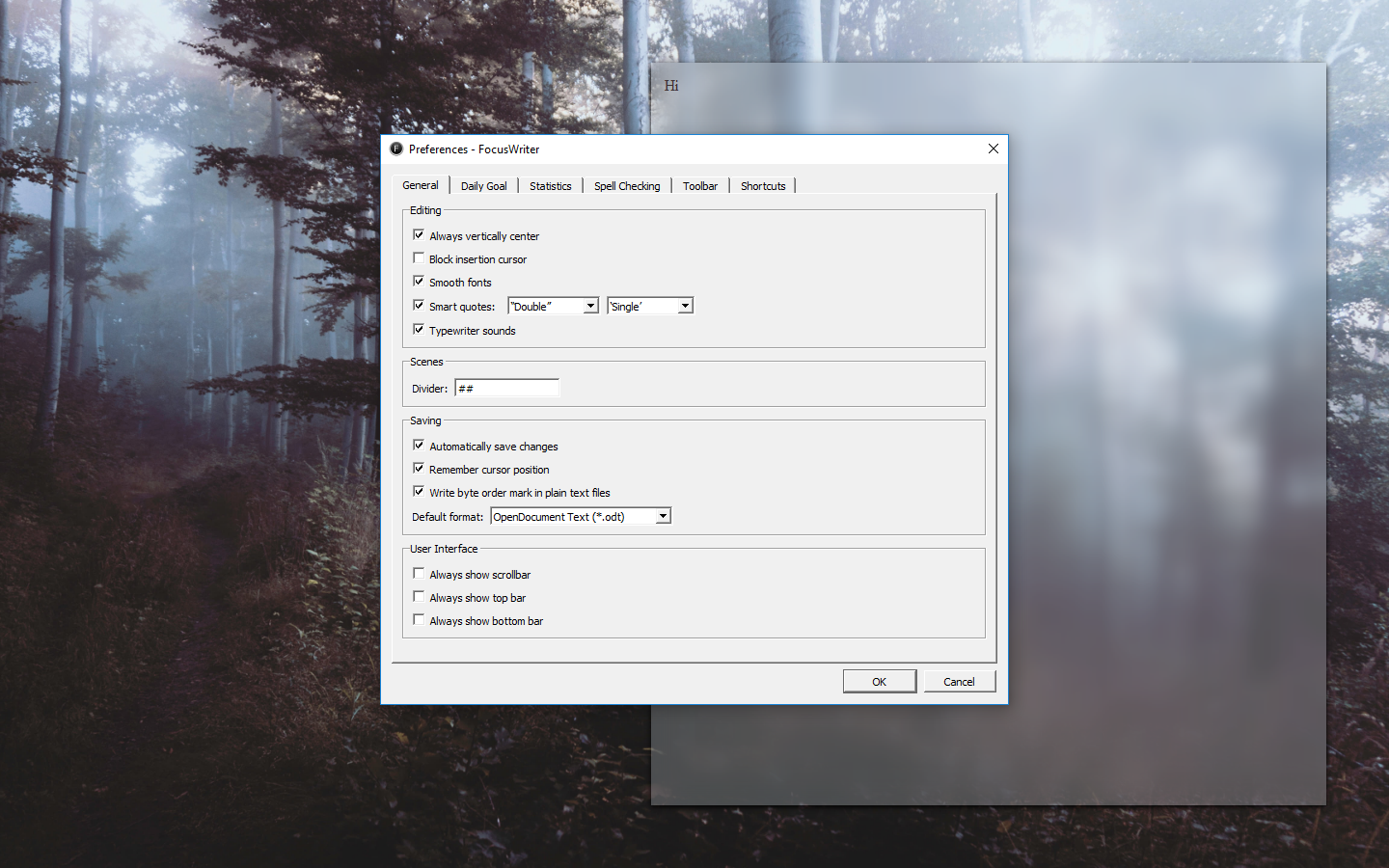
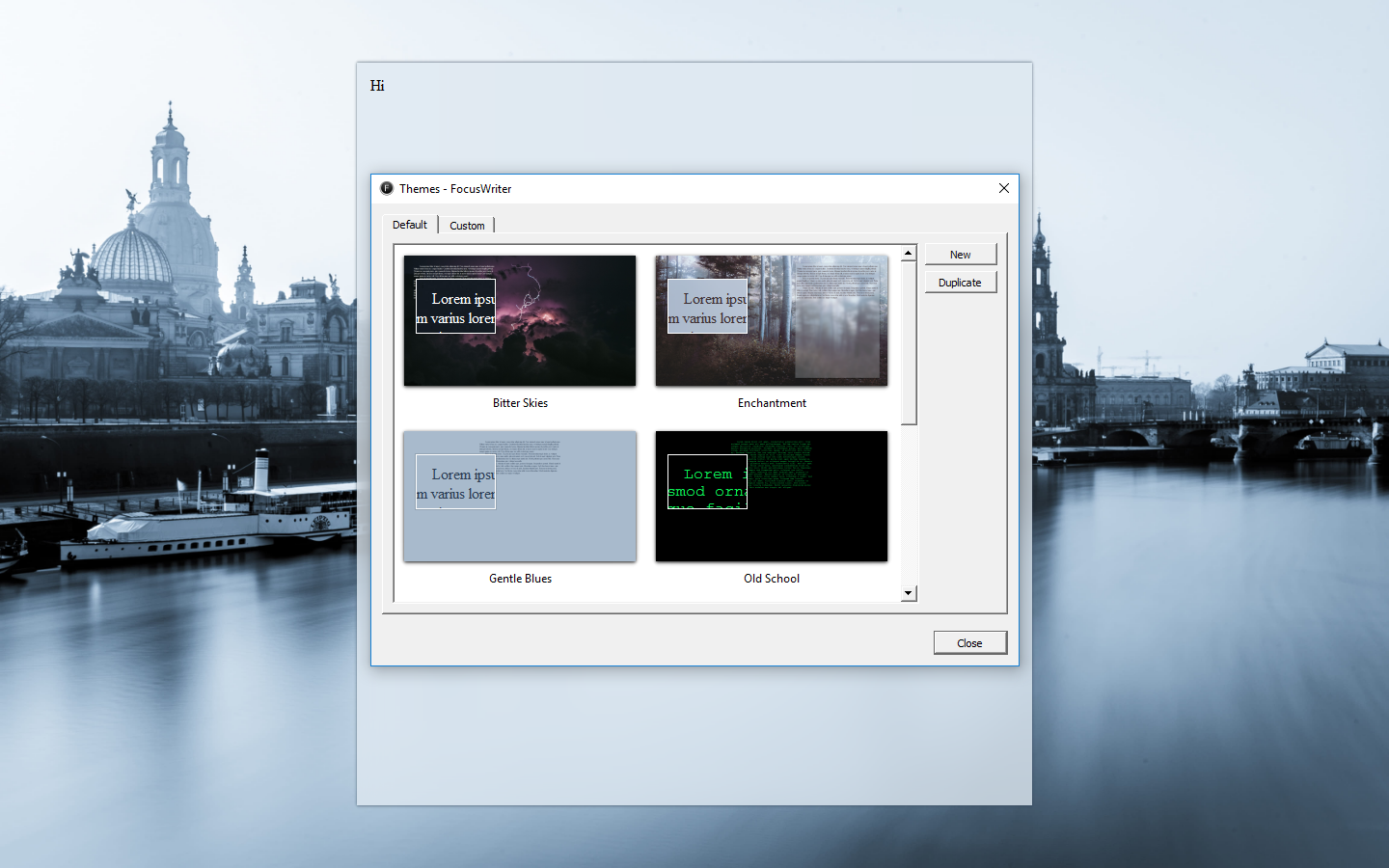
Hi This Is My First Time Writing on Focus Writer

It feels “different” typing here from on other typing apps because it has sounds. A typewriter sound. The sound is delayed which give more realistic feeling to it. Feels like I’m typing on a real typewriter. It has no backspace sound, of course… traditional typewriter doesn’t have any backspace. But, I can still get the oldies sensation from the “enter” sound. What do people call it back then? Paragraph?

Writing here can be my new addiction. But sadly, it can’t send my writing directly to any blog I have. So, I will only experience this cool typing sensation here, and the next is to copy and paste my plain text to my blogs by myself.

It also doesn’t support markdown, so I guess I can call Focus Writer as a traditional typewriter emulation. A perfect one.

This Part is Written in WriteMonkey

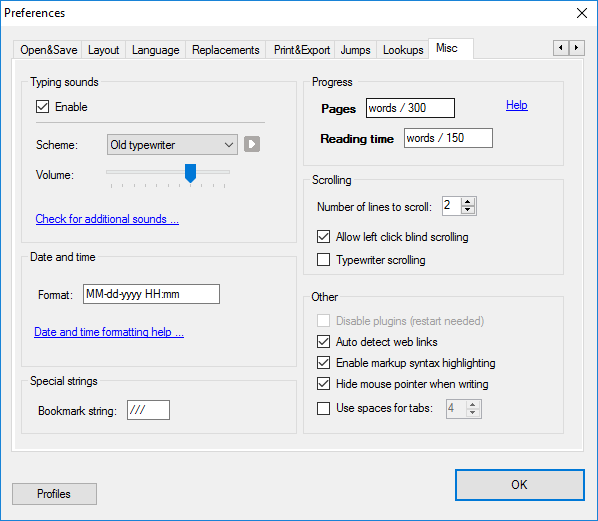
WriteMonkey also entertains me with its realistic typewriter sound, even I like the one in Focus Writer.
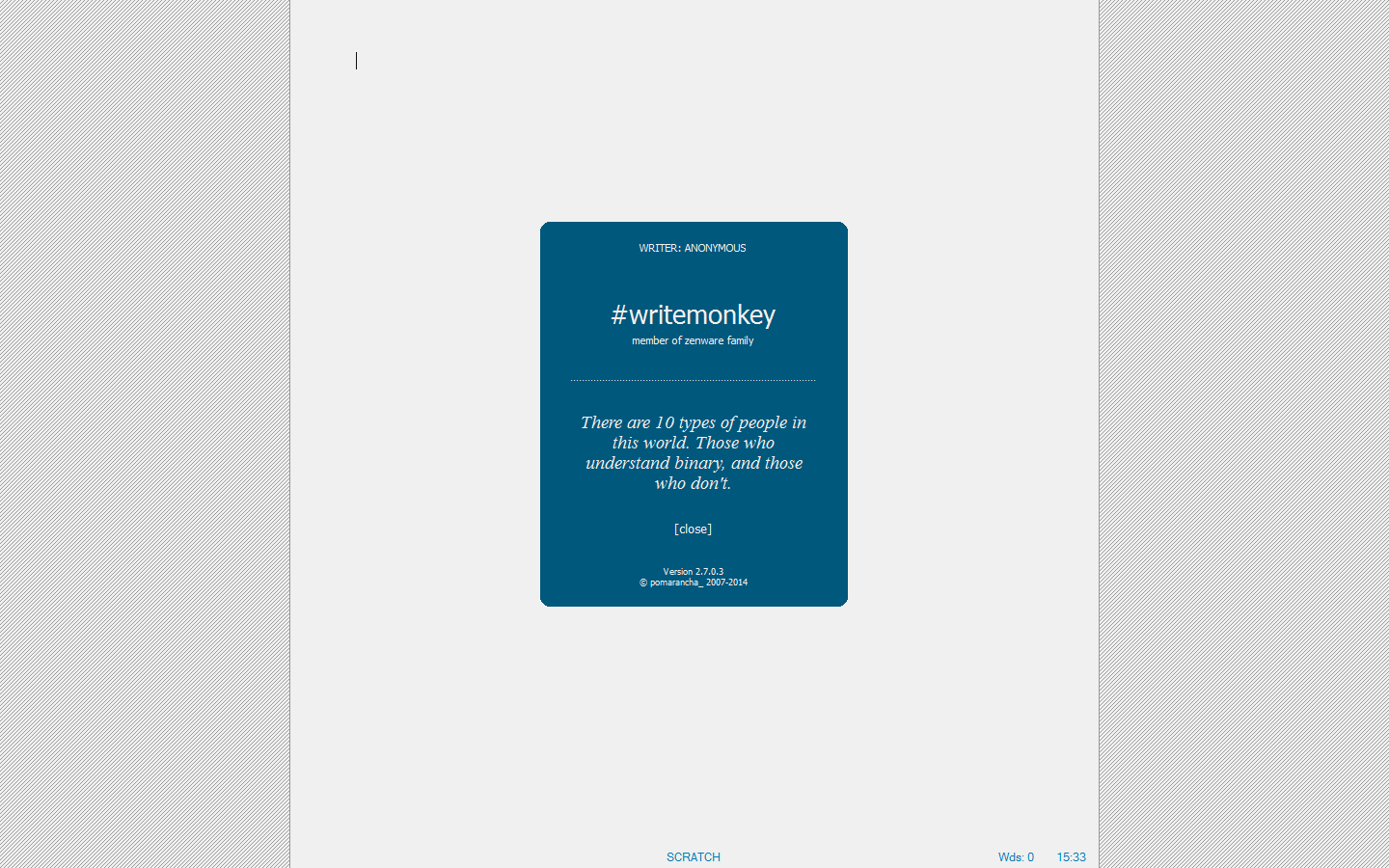
I was greeted with a splash screen with welcoming quotes when I first opened this application. And then… blank page in full screen.

It took me awhile for me to realize that I could access the menu by right-clicking my mouse. And there are **a lot** of hidden menus.

Markdown is supported in WriteMonkey, with a little adaptation, this can easily be everyone’s favorite writing software.
We can make a preview by exporting it to our installed [web browser](https://digressingme.cool). Sorry, that was me checking the Markdown for links.

[*Wondering what Markdown is? Read this article.*](https://digressingme.cool/markdown-markdown-editor-blog-writing/)

Now all I have to do is looking for the right and easy way to put this writing into [my blogs](https://digressingme.wordpress.com).

Conclusion

Both Focus Writer and WriteMonkey offer us minimalistic approach in writing with the maximal result. The only downside is that both have no direct way to put the texts into WordPress. But, the good news is, we can still paste our text to WordPress without losing the text format.

SEO Booster To Analyze and Increase Your Web/Blog Traffic


We’ve discussed AdSense Auto Ads and AdSense Matched Contents, both can give us income from our writing. What’s more, both focus on selecting and advertising in a strategic place for us. This means we can focus on content creation instead? The answers are… yes and no. Yes, with Auto Ads and Matched Content, we can focus on content creation without having to think about where ads will appear and what ads will appear. No, because without the help of SEO booster, the content that we have painstakingly created will have no visitors. That means we only rely on CPM (Cost Per Mile / 1000 x views). And that means a long time until we can take the money.

A Parable About SEO

SEO is an acronym for Search Engine Optimization. As the name implies, SEO will optimize our web to be more easily found by prospective readers of our article.

For example, in a village, there is an old sophisticated sculptor who can make a talking statue. But he never told anyone about his skills. Few people know and no buyers at all. This old guy has bad SEO. Now take a look at examples that have good SEO …

While in the next village there is a mediocre sculptor but always make an announcement in front of his workshop about the latest statue he made. He has already captured several potential buyers, his neighbors who saw the announcement, the person his neighbor said to him, and even the prospective buyer of the old sculptor in the next village.

The story above teaches us that a quality blog will be outdone by a blog with high exposure. Though it may be that the visitors will eventually leave the mediocre sculptor, this is still unprofitable for the sophisticated sculptor (as long as he does not start to refine his SEO).

Ok, enough fairy tales … If you want to know more about what SEO is, please read this article.

The Easy Way To Boost Your SEO!

This is how I’m doing it:

  1. Get SEO Booster here.
  2. See what SEO Booster analyzes through the dashboard. From here you will be able to start knowing which posts are the most visitors and from where.
  3. Please tweak the settings in SEO Booster. I can not tell you much what to do, because the content of our web may be different. Determine everything based on the data you got on the Dashboard.
  4. Start writing with the theme you have set. People are lazy today, and the information is easy to find anywhere. If your blog content is not constant, customers will move to a more constant source of information. For example, the person who visits the sculptor will not suddenly buy vegetables there (although the vegetables are on display in the window).

Make Bootable USB On Mac For Windows Installation


Today I replaced my SSD with Seagate HDD. Then I thought, why not make a switch to the operating system that I use? While I’m being diligent. My choice went to Windows 7 because it seems I have been absent for quite a while. And it seems Windows 7 will give me a lot of material to write. But, it turns out my last experience using Boot Camp is different from this time. I found it difficult to create a Live USB for Windows via Boot Camp. I couldn’t find the missing create Windows 7 install disk in order to make bootable USB. Fortunately, I found the answer soon.

After hundreds of cursing, I found the video below:

The way in the video was different when I applied on MacBook Pro mid-2010. However, in principle is the same, namely, to give permission for the info.plist file can we edit. You can get your Mac model in your About Mac.

The trick is:

  1. Restart while holding Cmd + R (this to restart to recovery mode).
  2. Select Terminal at the top bar.
  3. Type csrutil disable.
  4. Restart.
  5. Right click on Boot Camp icon in finder, then choose show package content.
  6. Right-click on the info.plist file and then look at the instruction video about what should be changed (before returning to the next step below).
  7. After changing the permissions, we can right-click the info.plist file to open it in Text Editor and then edit it.

Still not working? Try this tips…

This worked on “MacBookPro14,3” running High Sierra, but there is no DARequiredROMVersion in the info.plist, so instead I just added the Model Identifier (MacBookPro14,3) on ExternationInstall, USBBootSupported, PreWindows10OnlyModels drop down
PS: No matter what, based on my experience, I needed the internal DVD Drive attached  in my MacBook Pro in order to make bootable USB drive. That’s why I needed to replace my SSD (in caddy) with the original DVD Drive my MacBook came with.
Aside

Pull to Refresh New Chrome OS Feature


Pull to Refresh New Chrome OS Feature: Recently I was interested in trying out new features of Chrome OS, which is “pull to refresh”. I wondered what this meant? What is being pulled? Where?

Apparently, this feature is a feature like the use of Chrome on mobile devices, which we can drag down the browser in order to refresh.

But unfortunately, the new features that I can not enjoy. Because this feature is still in the Developer Channel, which means we must move the channel from stable or beta to the developer. Not that I do not want to change it, but it happens that my Chromebook is now inhabited by the cool Deepin OS.

Read here about how to get Dev channel update.

Read here to know more about Deepin OS.

Bloggers Welcome the Launch of New AdSense Auto Ads


Again, New Exciting Ads Type Launched by AdSense!

Just now, I got a notification that Google has launched its new product for AdSense called AdSense Auto ads. Its name is self-explanatory, this is the type of ad that works automatically.

You have to read this tutorial at least once because after you’re finished reading this article, you won’t need other AdSense tutorials, ever!

Of course, this is not only greeted happily by the bloggers, but also by all users of AdSense. I focus on bloggers because as a blogger who does not like complicated things like me, writing is the only fun thing to do. And this is now being managed by Google AdSense.

Here’s What’s Written on its Official web:

They let you focus on creating great content. Auto ads automatically place and optimize your ads for you so you don’t have to spend time doing it yourself.

They potentially increase your revenue. Auto ads analyze your pages and find new places to show ads based on your layout, content, and existing Google ads.

They’re easy to use. You place the same piece of code just once on each page that you want to show Auto ads. Google takes care of the rest.

Those three points sound very beneficial for me.

Here it is from one step to another:

But…

There is something quite worrying for me, namely the existence of Vignette ads (which we can disregard its use manually). Vignette ads will appear every time our web visitor moves from one page to another.

Also, read here about the most effective AdSense placement.

Well, I had a bad experience with this type of ad. I think this is very annoying, and I tend to avoid nets that use this type of advertising. But we’ll see. I’m sure this is not something that geniuses in the Google lab are overlooked.

These Are The Types of Ads “Brought” by Auto ads:

Matched content is the latest ad unit from Google AdSense that displays the suggestions of pages that contain the content of our entire web and is accompanied by advertisements from the outside. This ad only appears in the mobile version (along with Auto ads).

Also, read here about Matched Content Ads.

Text & display that can appear anywhere in our web pages.

In-article ads are ads that appear as delimiters in our articles, for example between paragraphs. With the note, the article should have an adequate length.

In-feed ads work like In-article, only, In-feeds only appear on mobile devices.

How to Use it

How to use it is relatively easy, namely by pinning the code provided by AdSense into the <head> of each page that we expect will bring Auto ads.

The code looks like this:

<script async src=”//pagead2.googlesyndication.com/pagead/js/adsbygoogle.js”>//

So, you will have to make:

<head>

<script async src=”//pagead2.googlesyndication.com/pagead/js/adsbygoogle.js”>//

</head>

Also, read here to know how to insert script to your WordPress site.

However

Some people will be less happy with the launch of this Auto Ads, for example, the makers of AdSense tutorials like me. :_(

New Google Chrome Settings To Speed Up Your Blog Writing


Writing a blog is a fun and productive activity. Yes, we can write something today and then get paid two years from now. If our blog is still alive and writing we still have readers. Fortunately, we have a new Google Chrome settings to speed up the process of blog writing.

However, to write every day and do the same activities before writing that is what often makes writers reluctant to write. Here is a list of activities I usually do:

1. Turn on the computer
2. Waiting
3. Enter the password
4. Waiting
5. Open the browser
6. Opening the following pages:

a. Google Trends
b. Keyword Planner
c. Yoast SEP Suggest
d. Google Translate
e. My blog page

Imagine how much time is wasted doing the same thing over and over again.

Also, read about maximize the use of WordPress widgets and themes.

For this reason, this afternoon I tried to build my own new Google Chrome settings to speed up the process of blog writing. This is how I’m doing it:

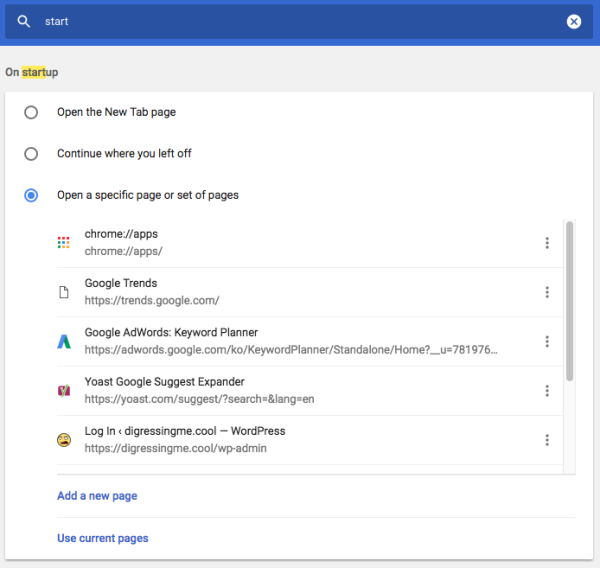
  1. Go to your Google Chrome settings page by clicking three dots on the upper right of your Chrome web browser.
  2. Type Start in the search bar.
  3. Choose open a specific page or set of pages.
  4. Start entering the pages you use the most here.It’s up to you, but my setup is:

    a. chrome://apps/
    b. https://trends.google.com
    c. Keyword Planner
    d. https://yoast.com/suggest/
    e. https://translate.google.com
    f. My actual blog

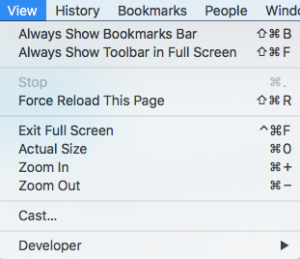
And to minimize the distraction, even more, I go to View and then untick everything there. Then go Full Screen. You can switch between tabs easily using these hotkeys: ctrl + tab to switch to the next tab, and ctrl + shift + tab to go to the previous tab (while leaving your current tab open). And you can swipe left and right using two fingers to go to the next and previous page in the same tab.

Too much tabs? Use Cmd + W to close the cluttering tabs and use Cmd + T to open a new tab.

Final Touch

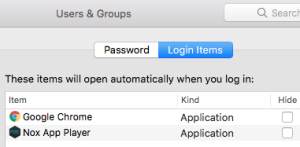
For Mac user, you can go to System Preferences> Users & Groups > Add Chrome as a startup application.

Shazam! You get yourself a Chromebook (Without all the cool stuff) :p

These settings also apply to Chromium on Linux, Windows, and Mac (may be with a bit of hotkey differences).So, what are you waiting for? Restart your Google Chromebook and test your new Google Chrome setting.

Google Chrome’s New Rule: Ad Blocking


Google Chrome’s New Rule: Ad Blocking

Again Google issued a controversial decision. Having previously “complicated” the YouTubers by raising requirements to monetize their videos. This time Google is implementing new rules for Google Chrome users.

Read about YouTube hard rule here.

Google Chrome will soon block all ad impressions that are considered annoying, such as the use of auto-play video ads. This is actually a bit ironic considering Google including those who advocate the web browser users to turn off the ad blocker that they use.

For the web maker or service user of AdSense, it has been felt for a long time. Google often recommends that ads are made in harmony with the web they are hosting. In fact, Google also often analyze the ads and our web and then suggest improvements in appearance. For example, preventing stacked ads or ads that have an out-of-theme appearance.

Google’s latest interference with ad creation is the Matched Content system.

The last thing is somewhat confusing to some people because the rule is against Google’s rules that require ads to look like ads. Google intent is, do not let our web visitors stuck with the ads we make as part of our article. For example, I can write this, “click the link below to know more”, but I didn’t know what Google AdSense ads will appear under this post. Meanwhile, web users most likely “fooled” by the instruction when opening the ad.

//pagead2.googlesyndication.com/pagead/js/adsbygoogle.js

(adsbygoogle = window.adsbygoogle || []).push({});

See what I mean?

I myself think this rule is good. That way, the web that has been hard-won by the webmaster will not be “spotted” by bad ads. Web visitors will have a more enjoyable experience on the web and in addition, can also conveniently click on what they need.

And I think this will cause the possibility of web visitors to subscribe or start following.

So, have you followed my web?

History of The Internet Browsers


History of The Internet Browsers

In ancient times, the human link with the information available on the internet is through internet explorer (the real meaning) or also called internet browser. At that time one browser window can only display one command, before executing the next command. For example, you can open digressingme.cool, do not expect at the same time you can also open movies.digressingme.cool. You should open two internet browsers to view both at the same time. Or sometimes even use two computers for ease the task of cheating. And that opens our subject: the history of the internet browsers.

Tab Browsing Invented

For that reason, a system called Tab Browsing was being developed. Yes, as you see in Chrome, Firefox, Pale Moon, Safari and many more.

You must try Pale Moon if you have not tested for its speed.

With tabbed browsing, we can open more than one web page at a time. If the tab digressingme.cool is not responding, the movies.digressingme.cool tab will still work as it should. That’s because the browser keeps the error on the not responding tab only. Chrome does the development of the tabbed browsing through the famous Chromium project and makes it a non-open source package. Chromium itself still an open source project.

Read about Chromium here.

If anyone shows a cynical attitude by saying that they never felt that the browser could run the app, chances are they never played a game on Facebook and never used a matchmaking app. Or do not even know what a Chromebook is.

Progressive Web App

Now is the progressive web app time. The web browser will run a page that works with the progressive web app so that users will experience the experience of using an app. Chrome has started turning off its support for the regular web to enter the store as an app. This is so that developers will be more focused on making the progressive web app. Luckily I made it before this rule came out, and you can make one too.

Try Digressingme web app.

Make and sell your own Chrome Web App.

This Google rule gets a lot of criticism, but I think personally, that’s a good thing. Because I am getting sick of installing something that is categorized application but apparently just a bookmark to the website instead. And not infrequently the website installer came with a misleading description.

Read about photo editing web apps.

Booster

But having a fast internet browser would not be nice if we had to switch applications first to perform a task. That’s when extensions take part. Extensions is a “plugin” that allows the internet browser (and you) to perform a task. For example, play videos, translate, fix grammar, check AdSense and even trivia like Weather. Getting bored with the look of your browser? The theme extensions will make your internet browser look fresh again.

Best Chromebook extensions early Feb 2018 edition.

The Re-Invention

Things are changing. Previously people were relying on various apps for a specific task of what a desktop app can do. Now people are starting to get back to a desktop app by using it through the cloud. Thanks to the high-speed internet access. The demand for progressive web app development must be balanced with a fast browser. If not, it’s useless, right?

Software developers greet this phenomenon. Because the number of piracy will drop drastically with this system. This software does not need to be traded anymore but is subject to rental rates, to pay for cloud storage and use of the app itself. Adobe is one of the big companies that are aware of this with Creative Cloud. Moreover, in this way, the web app can get additional results from advertisers. Awesome!

Read about Adobe Spark here.

And that concludes the History of The Internet Browsers.