Yandex Web Browser Windows


We discussed Yandex for macOS before and even did some benchmarks against 15 other web browsers. Now, we will be discussing Yandex Web Browser Windows version. The installation went smoothly with the ridiculously small installer file downloaded. Of course, there was another process going on in the installation process. But still, it was fast.

Read here to see which web browser is the best.

Yandex offers us to import the data from our previous web browser. Surprisingly, some of the extensions imported and logged in. How convenient!

Features

Secure browsing

Browse safely with Yandex Browser’s built-in comprehensive protection system that covers all bases safeguarding you from any possible security hazard, from viral threats and identity theft to DNS spoofing and annoying or malicious advertising.

Fast page loading

Speed up your page loading and save on your data charges with Yandex Browser’s data compression mode that switches on automatically each time your internet connection speed drops below a critical point.

Personalisation

Choose themes and backgrounds that match your style or current mood. Click to your favorite websites right from a color-coded quick-access panel always available in the new tab.

Recommended content

Discover new stories, images and videos recommended to you based on your personal interests. Yandex Browser’s built-in infinite content recommendation feed, powered by unique AI-based technology Zen, learns to understand you better every time you go online.

Sync

It also allows me to sync using my Yandex account which renders the importing part obsolete. I doubled my extensions after I’m done syncing. The first set was imported, and the second set was synced. Anyway, this makes my transition from macOS to Windows seamless.
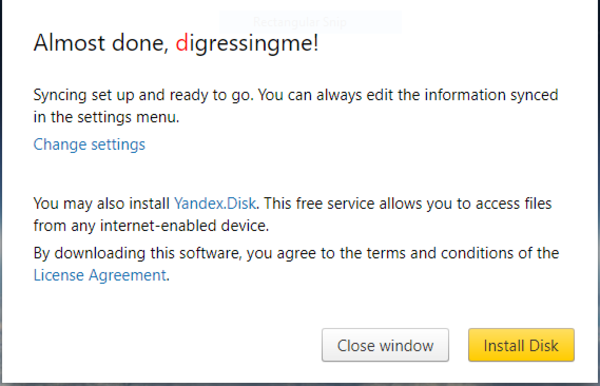
 

Yandex Web browser Windows

Syncing also allows me to use Yandex disk, a cloud storage. This will be a good alternative to Google Drive since they will shutdown Drive for Windows and macOS soon.

Also, read about Google shutting down Drive for Windows and macOS here.

How Vivaldi Tiled Tab Browsing Boost My Productivity


Vivaldi impressed me with its ability to display web pages that I opened in a neat tabular arrangement. This is called tiled tab browsing. I like this because I can see several web pages at once without having to bother moving tabs to do my activities.

And what makes this feature so cool is … I can still use my web panel to view and use even more web pages at once.

Read about how to upload Instagram photos using Web Panel here.

By applying tab browsing, I don’t have to worry about closing web pages that I’m using by accident because everything is arranged neatly in the web tabs that I built before. I do have a habit of closing the web tabs to conserve on RAM, and oftentimes this habit results in the page I’m reading closed.

Let’s check the video of how I use tab browsing below:

You can see how easy and useful tab browsing is when applied (correctly*).

The Hotkeys are:

  • For tiling the tabs in a grid view. Cmd F7
  • For tiling the tabs horizontally Cmd F8.
  • For tiling the tabs verticallyCmd F9.
  • For untiling the tabs Cmd F6.

As I’ve mentioned above, we can still make use of the web panels (Cmd + Opt + P) while using the tabs, and it increases our productivity even more.

Why Do I Need It

I have a habit of computing that I always do every day, namely:

Opening Chrome, then opening these following pages:

This web, Google Translate, Google Trends, AdWords, AdSense and Gmail. And that’s just the “most use” I mentioned, not to mention a few other pages.

Of course, I’ve done efficiency by making Chrome automatically open those pages as you can read “the how-to” here.

But then I imagined how cool if I actually can see all those pages at once, is not it?

Get to know more about Vivaldi on their forum.

*sometimes the tabs won’t refresh itself when we grouped too many tabs at once.

What Is The Best Web Browser? Benchmarking 15 Browsers – Shocking Result


I found that switching web browsers is actually more effective and efficient for me because my activities mostly surfing activity in a web browser. Which led me to a new question, “what is the best web browser?” I compared 15 web browsers by using Robohornet and found a shocking result.

Vivaldi is the most suitable for me, for the reasons I am writing here. But which one is the best? And I do not know how to say and explain it, then I used Robohornet to show it to me.

Also, read about why Vivaldi is the best web browser for me.

What Is The Best Web Browser – Challenge – Day 1

The video shows us that Brave has the lowest point (45.92), followed by Qupzilla, Firefox Nightly, Yandex, Phoebe, Slimjet, and Opera Neon with the highest point (72.78).

That means Brave is the best, right? We’ll find the shockingly answer later in this post.

So today I decided to continue the web browser comparison to find out which web browser is the best.

For a refreshment, yesterday we’ve tested Brave, Qupzilla, Nightly, Yandex, Phoebe, Slimjet, and Opera Neon. And now we’re going to test 8 more:

  1. Chrome
  2. Chrome Canary
  3. Maxthon
  4. Omniweb
  5. Opera
  6. Seamonkey
  7. Waterfox
  8. Vivaldi
  9. Brave
  10. Qupzilla
  11. Nightly
  12. Yandex
  13. Phoebe
  14. Slimjet
  15. Opera Neon

So here it is:

As you can see in the video, Maxthon has the highest score, 117.75. According to what I found online, the results in larger numbers are better. This kind of makes me confused, because that’s not what I experienced when I use those big point browsers. I tried to find the answer here. This is what I call as the shocking result.

What is the “score” for a benchmark? Is it a 1/time measurement, i.e. a higher score is better? If so, I don’t understand why b.benchmarkScore is in the denominator. Also, that looks like a list comprehension but the end result is a number, so that’s also odd.

Can you find your web browser choice after watching the video?