What is The Best Web Browser | Comparing 15 Web Browsers


I found that switching web browsers is actually more effective and efficient for me because my activities mostly surfing activity in a web browser. Which led me to a new question, “what is the best web browser?” I compared 15 web browsers by using Robohornet and found a shocking result.

Vivaldi is the most suitable for me, for the reasons I am writing here. But which one is the best? And I do not know how to say and explain it, then I used Robohornet to show it to me.

Also, read about why Vivaldi is the best web browser for me.

What Is The Best Web Browser — Challenge — Day 1

https://youtu.be/Kdk4qUb2TB4

The video shows us that Brave has the lowest point (45.92), followed by Qupzilla, Firefox Nightly, Yandex, Phoebe, Slimjet, and Opera Neon with the highest point (72.78).

That means Brave is the best, right? We’ll find the shockingly answer later in this post.

So today I decided to continue the web browser comparison to find out which web browser is the best.

For a refreshment, yesterday we’ve tested Brave, Qupzilla, Nightly, Yandex, Phoebe, Slimjet, and Opera Neon. And now we’re going to test 8 more:

  1. Chrome
  2. Chrome Canary
  3. Maxthon
  4. Omniweb
  5. Opera
  6. Seamonkey
  7. Waterfox
  8. Vivaldi

So here it is:

https://youtu.be/ZV92-hM3dSw

As you can see in the video, Maxthon has the highest score, 117.75. According to what I found online, the results in larger numbers are better. This kind of makes me confused, because that’s not what I experienced when I use those big point browsers. I tried to find the answer here. This is what I call as the shocking result.

What is the “score” for a benchmark? Is it a 1/time measurement, i.e. a higher score is better? If so, I don’t understand why b.benchmarkScore is in the denominator. Also, that looks like a list comprehension but the end result is a number, so that’s also odd.

Can you find your best web browser after watching the video?
Google Chrome’s New Rule: Ad Blocking


Google Chrome’s New Rule: Ad Blocking

Again Google issued a controversial decision. Having previously “complicated” the YouTubers by raising requirements to monetize their videos. This time Google is implementing new rules for Google Chrome users.

Read about YouTube hard rule here.

Google Chrome will soon block all ad impressions that are considered annoying, such as the use of auto-play video ads. This is actually a bit ironic considering Google including those who advocate the web browser users to turn off the ad blocker that they use.

For the web maker or service user of AdSense, it has been felt for a long time. Google often recommends that ads are made in harmony with the web they are hosting. In fact, Google also often analyze the ads and our web and then suggest improvements in appearance. For example, preventing stacked ads or ads that have an out-of-theme appearance.

Google’s latest interference with ad creation is the Matched Content system.

The last thing is somewhat confusing to some people because the rule is against Google’s rules that require ads to look like ads. Google intent is, do not let our web visitors stuck with the ads we make as part of our article. For example, I can write this, “click the link below to know more”, but I didn’t know what Google AdSense ads will appear under this post. Meanwhile, web users most likely “fooled” by the instruction when opening the ad.

//pagead2.googlesyndication.com/pagead/js/adsbygoogle.js

(adsbygoogle = window.adsbygoogle || []).push({});

See what I mean?

I myself think this rule is good. That way, the web that has been hard-won by the webmaster will not be “spotted” by bad ads. Web visitors will have a more enjoyable experience on the web and in addition, can also conveniently click on what they need.

And I think this will cause the possibility of web visitors to subscribe or start following.

So, have you followed my web?

History of The Internet Browsers


History of The Internet Browsers

In ancient times, the human link with the information available on the internet is through internet explorer (the real meaning) or also called internet browser. At that time one browser window can only display one command, before executing the next command. For example, you can open digressingme.cool, do not expect at the same time you can also open movies.digressingme.cool. You should open two internet browsers to view both at the same time. Or sometimes even use two computers for ease the task of cheating. And that opens our subject: the history of the internet browsers.

Tab Browsing Invented

For that reason, a system called Tab Browsing was being developed. Yes, as you see in Chrome, Firefox, Pale Moon, Safari and many more.

You must try Pale Moon if you have not tested for its speed.

With tabbed browsing, we can open more than one web page at a time. If the tab digressingme.cool is not responding, the movies.digressingme.cool tab will still work as it should. That’s because the browser keeps the error on the not responding tab only. Chrome does the development of the tabbed browsing through the famous Chromium project and makes it a non-open source package. Chromium itself still an open source project.

Read about Chromium here.

If anyone shows a cynical attitude by saying that they never felt that the browser could run the app, chances are they never played a game on Facebook and never used a matchmaking app. Or do not even know what a Chromebook is.

Progressive Web App

Now is the progressive web app time. The web browser will run a page that works with the progressive web app so that users will experience the experience of using an app. Chrome has started turning off its support for the regular web to enter the store as an app. This is so that developers will be more focused on making the progressive web app. Luckily I made it before this rule came out, and you can make one too.

Try Digressingme web app.

Make and sell your own Chrome Web App.

This Google rule gets a lot of criticism, but I think personally, that’s a good thing. Because I am getting sick of installing something that is categorized application but apparently just a bookmark to the website instead. And not infrequently the website installer came with a misleading description.

Read about photo editing web apps.

Booster

But having a fast internet browser would not be nice if we had to switch applications first to perform a task. That’s when extensions take part. Extensions is a “plugin” that allows the internet browser (and you) to perform a task. For example, play videos, translate, fix grammar, check AdSense and even trivia like Weather. Getting bored with the look of your browser? The theme extensions will make your internet browser look fresh again.

Best Chromebook extensions early Feb 2018 edition.

The Re-Invention

Things are changing. Previously people were relying on various apps for a specific task of what a desktop app can do. Now people are starting to get back to a desktop app by using it through the cloud. Thanks to the high-speed internet access. The demand for progressive web app development must be balanced with a fast browser. If not, it’s useless, right?

Software developers greet this phenomenon. Because the number of piracy will drop drastically with this system. This software does not need to be traded anymore but is subject to rental rates, to pay for cloud storage and use of the app itself. Adobe is one of the big companies that are aware of this with Creative Cloud. Moreover, in this way, the web app can get additional results from advertisers. Awesome!

Read about Adobe Spark here.

And that concludes the History of The Internet Browsers.

How To Get Google Chrome Update Dev 66, Beta 65, Stable 64


Google Chrome Update

Getting Google Chrome updates can only be done through Chrome itself, unlike Chromium’s open-source update which we can deliberately choose. For Chromebook users, this is highly anticipated, as there will be no updates except those already announced by Google. For example, as I wrote about the latest update in the previous article.

This is how to get Google Chrome Update:

On Chromebook:

  1. Click on your profile picture on the lower right of your screen.
  2. Go to settings.
  3. Click on three stripes on the top left to reveal About Chrome.
  4. Click on the version area to update.

It will be updated automatically (restart needed), you can conveniently keep using your Chromebook. You can also change the channel here, but I won’t recommend it unless you really need to play with this.

On Other Computer:

  1. Click three dots button on your upper right.
  2. Go to settings.
  3. Click on three stripes on the top left to reveal About Chrome.
  4. Click on the version area to update.

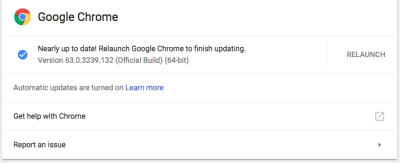
You will then have to relaunch Chrome manually.

What’s New in This Google Chrome Update?

Developer Channel

The Dev channel has been updated for Mac and Linux, and 66.0.3343.3/.4 for Windows.

A partial list of changes is available in the log. Interested in switching release channels? Find out how. If you find a new issue, please let us know by filing a bug. The community help forum is also a great place to reach out for help or learn about common issues.

Also, read Chromium 64-bit for Mac.

Beta Channel

Chrome 65.0.3325.51 contains our usual under-the-hood performance and stability tweaks, but there are also some cool new features to explore – please head to the Chromium blog to learn more!

Stable

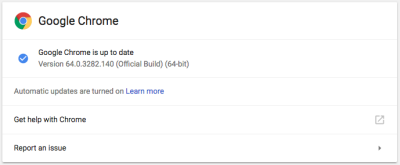
64.0.3282.140 for Windows, Mac, and Linux.

Problem With Your Chrome?

You can try doing the steps below and see if it helps:
  • Use incognito mode. If this helps to solve the problem, then temporarily disable your extensions to identify which one is causing the rendering problem. To do this go to chrome://extensions and uncheck Enabled for each extension one by one.

  • Remove unwanted programs from Chrome.

  • Your profile account might have been corrupted. Try creating a new browser user profile and check if that makes a difference.

  • Reset your browser settings.


Status

Chrome OS Update 64.0.3282.101 Beta Channel


Chrome OS Update 64.0.3282.101 (Platform version: 10176.54.0) was just launched 19 hours ago. Although this update is still in Beta stage, still I was tempted to try it.

Like all products in the Beta stage, this version is not yet a final version called Stable. Because the Beta version aims to provide an opportunity for its users to try and report any damage or bugs.

Developers open the opportunity to report bugs and bugs through forum or by filing a bug.

For those interested in trying this Beta version, can do this by changing the channel by opening the settings and changing the options from Stable to Beta.

Of course, the downloading process will be required. so make sure the internet connection is connected before nagging because the update process is not running.

Meanwhile, As For DevTools 64…

The Best and Functional Chromebook Themes (Early 2018 Edition)


I often ask myself, what is the best and functional Chromebook themes (and Chrome browser too)? After some fun time browsing and trying, I finally compiled this list for you. I only include the curated the themes which are really functional and not only changing the background images. So let’s start…

Handy Tab

Handy Tab is not only good looking, it also gives us the access to most web/tab we visit the most. Sounds familiar? Yes, because most Chrome (and any other browser also does this). But, give it a slight of a glance at this video and see what other themes can’t do..

I New Tab

This is my second favorite on this list. I feel like having another desktop on my current operating system. I think I can’t find the word to describe it, so you might want to check the video below…

Sky And Forest (FVD)

One of a few theme that actually fully functional. Read more about this theme here.

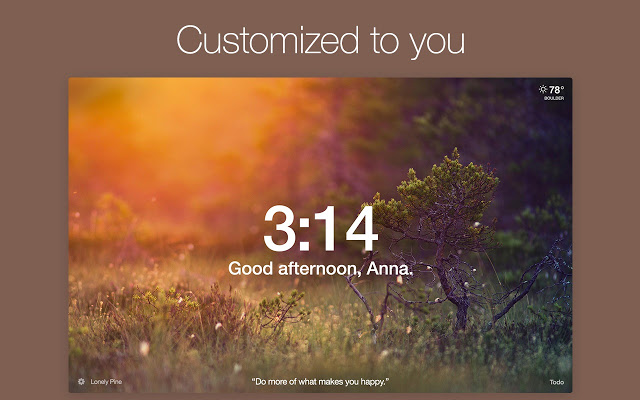
Momentum

This is one of the most popular themes in Chrome Web Store. Everyone Chrome user should try at least once. It has the functionality of Handy Tab. But focus more on productivity by minimizing all other options. It feels like having Google Home on your desktop.

Infinity New Tab

Also with the functionality of Handy Tab. It’s one of the pioneers in this industry. What teaches better than experience? But it has a downside since it leads to opening new page only to check for weather. Just check the video below…

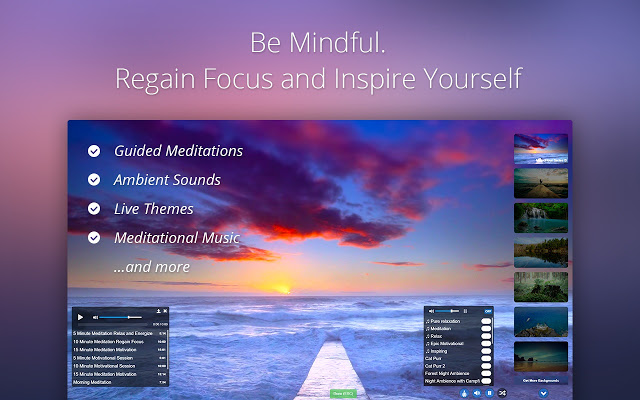
Live Start Page – Living Wallpaper

Also built for productivity, Live Start Page – Living Wallpaper stands tall among the best with its capability to be used “differently”.

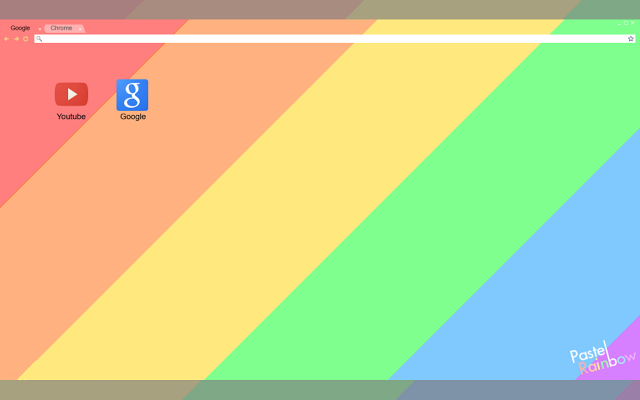
Pastel Rainbow

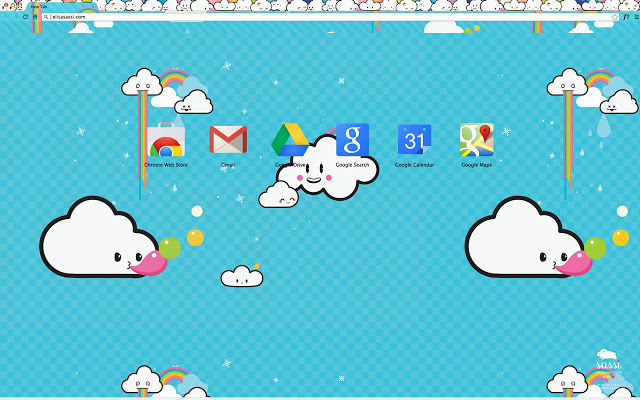
With borderless design, this theme makes your Chrome feels larger (even it wasn’t). Well, what can I say… it’s just too good looking not to try. 😀

Pastel Rainbow

Made_of

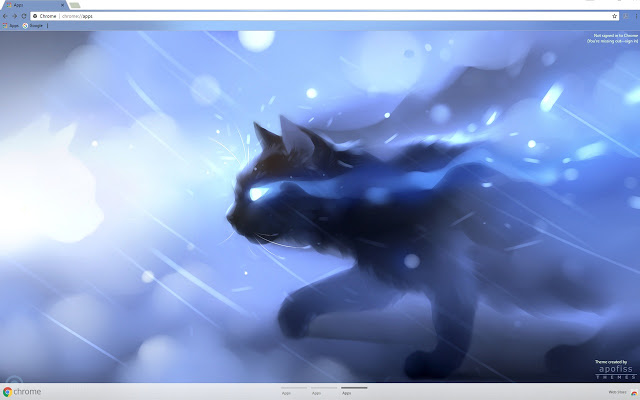
This theme was made by a Deviant Art contributor, Apofiss. Check out his other works too on Patreon.

Apofiss


Honorable Mentions For Best and Functional Chromebook Themes:

Nuvi Collection

Nuvi Collection

  1. DevTools Theme: Zero Dark Matrix
    The name explains itself, even it won’t transform you into Neo. It will give you the Matrix feel when you are using Chrome in the developer mode.
  2. Iron Man-Material Design
    A theme with nice vector art of Ironman.

  3. Nuvi Collection (displayed)
    Also a simple theme with cute graphics.
  4. Retro Robots Theme
    Reminds me of the time I played Machinarium.
  5. Fluffy Sushi
    This theme is nicely presented.
    Just if it actually works like in the preview, I would definitely use it as my main theme.
    Because… cat.

Closing

So, that’s all best and functional Chromebook themes for early 2018. Are you using the theme I listed here? Or am I missing something? Please tell me in the comment section below and don’t forget to follow this web for more Chromebook info.

menampilkan icon di tab baru chrome

Menampilkan Icon di Tab Baru Chrome


Icon di Tab Baru Chrome

Pernah ngerasa “tertipu” waktu habis install theme baru Chrome dan hasil yang keluar gak sesuai dengan thumbnail/previewnya? Kalau pernah, badgus… berarti bukan Aku sendiri yang ngerasa begitu. Ternyata ada caranya buat menampilkan icon di tab baru Chrome. Sebelumnya, Aku kasih contoh di bawah ini:

Ini yang diharapkan…

…eh setelah diinstall hasilnya ini…

menampilkan icon di tab baru chrome

Ini bisa jadi karena theme yang kita lihat itu masih pakai thumbnail lama. Sejak Google mengupdate Chrome ke versi 29, icon di tab baru Chrome memang udah gak ditampilin lagi. Ini berguna buat tema yang mendukung seperti CoolColorTheme, tapi bikin basi tampilan tema yang polos. Gimana ya? Gak greget aja gitu, serasa browsing pakai internet explorer lainnya.

Kalau lu satu selera sama Aku, icon-icon itu bisa dibalikin lagi pakai ekstensi “Show Apps in New Tab” yang bisa didownload di sini. Setelah instalasi ekstensi, jangan lupa matiin ekstensi/tema lain yang “bentrok” sama ekstensi ini, misalnya tema-tema yang memakai Flash buat antar-mukanya seperti Pixlr dan Momentum.

chrome web store

Chrome Web Store


Sebetulnya gw tuh pengen banget punya Google Chromebook. Padahal alesannya juga ga jelas kenapa. “Just for the sake of owning it!”, kalo kata salah satu orang kolektor gitar yang gw pernah temui. Pernah sih cobain install Chromium OS di laptop lama, dan ya memang rasanya cuma kaya buka laptop yang isinya browser Google Chrome aja sih. Lah, terus gimana kalau mau install-install dan kerja? Nah, di situlah fungsi Chrome Web Store.

Apa aja yang ada di dalam Chrome Web Store?

Di sini lu bisa temuin aplikasi, game, extension dan tema yang ga ngeganggu kinerjalu sebagai karyawan maupun pengangguran. Jiah…nganggur aja pake Chromebook, gaya lu ah!

Buat yang pemakai aplikasi Microsoft Office, ga perlu takut ga bisa lanjutin kerja. Soalnya app dari Google bisa ngerjain itu semua. Misalnya, untuk File Excel, bisa dikerjain pake Google Sheet, File Words bisa dikerjain pake Docs dan gw belom cobain sih yang laen. Soalnya gw bukan fans aplikasi Office sih dari dulu, makanya gw ga pinter-pinter.

Buat alay yang mau bikin tampilan Chrome jadi khas… tinggal download tema aja. Keren-keren pilihannya. Gw sih pake tema Pacific Rim Uprising…gagah!

Nah, buat yang mau lebih serius, bisa install macam-macam extension…mulai dari extension penerjemah, sosial media dll. Jadi lu bisa tetap exist tanpa harus ningalin halaman kerjalu.

Oh iya… asiknya lagi. Kalo pake ini, lu ga perlu panik file lu ilang. Soalnya semua otomatis masuk ke Google Drive yang waktu gw tulis ini sih masih dikasih gratis cuma-cuma sebesar 30gb (kalo lu beli Chromebook, bukan install Chromium OS doang). Wuih lumayan tuh.

Yang gila tampil, janga lupa loh kalo dari dulu Google tuh udah punya Youtube, terus sekarang ada yang namanya Sites… itu buat bikin websitelu, ya kali lu mau pasang foto-foto narsislu beserta kata2 mutiara di situ. Lu ga perlu ribet masuk-masukin fotolu ke hape atau mana-mana, soalnya semua foto bahkan videolu itu otomatis terbackup di Goofle Photos. Unlimited quota (dengan kualitas medium).

//pagead2.googlesyndication.com/pagead/js/adsbygoogle.js

(adsbygoogle = window.adsbygoogle || []).push({});

Nah Ini Asiknya…

Perasaan serius melulu… gak ada game? Wew.. ada dong cong… Di sini banyak game yang bisa lu maenin online dan offline. Ya tinggal klik aja di pilihannya, mau cari yg available offline juga gak? Jangan sampe udah download, tau2 pas di dasar laut ga bisa lu maenin lantaran ga ada sinyal.

Tapi ini bukanya ga ada cela yah.

Nomer satu tetaplah : Mayoritas kegiatanlu di sini musti ONLINE. Minimal lu musti santai dulu sampe nemu sinyal baru bisa lanjutin pake app yg online only tadi. bahkan untuk ngesave data pun begitu.

Nomer dua : Namanya store… ada aja kecolonganya. Bahkan sekelas AppStore atau PlayStore kita suka nemu developer dodol yang ngupload remehan gak bermutu. Apalagi di sini… beberapa kali gw nemu “cloningan” game yang pas gw install ternyata masuh ke phishing web. Norak!

Kabar bonus bahagianya adalah : Sebagian Chromebook udah bisa jalanin app Android. Jadi lu yg galau mau beli apaan dengan budget terbatas, gw saranin beli Chromebook yang udah bisa jalanin app Androidnya. Harganya relatif lebih murah kok.

Nah gitu dulu deh… kalo ada yang mau nambahin, mendingan jangan.

Bikin tulisan sendiri aja gih. Tentang Chrome Web Store lagi juga boleh kok. Ok? Ok?

Oh iya… ngiklan nih… baca dong cerita sedih gw di sini. Dijamin signan.

Aku Di Bumi Datar

Klik gambarnya, jangan didiemin aja!