
I often ask myself, what is the best and functional Chromebook themes (and Chrome browser too)? After some fun time browsing and trying, I finally compiled this list for you. I only include the curated the themes which are really functional and not only changing the background images. So let’s start…
Handy Tab
Handy Tab is not only good looking, it also gives us the access to most web/tab we visit the most. Sounds familiar? Yes, because most Chrome (and any other browser also does this). But, give it a slight of a glance at this video and see what other themes can’t do..
I New Tab
This is my second favorite on this list. I feel like having another desktop on my current operating system. I think I can’t find the word to describe it, so you might want to check the video below…
Sky And Forest (FVD)
One of a few theme that actually fully functional. Read more about this theme here.
Momentum
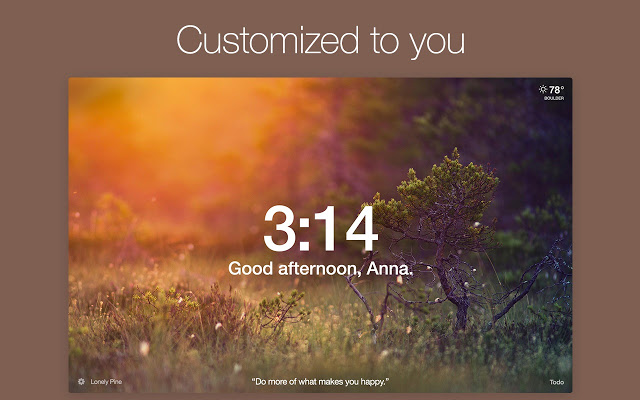
This is one of the most popular themes in Chrome Web Store. Everyone Chrome user should try at least once. It has the functionality of Handy Tab. But focus more on productivity by minimizing all other options. It feels like having Google Home on your desktop.
Infinity New Tab
Also with the functionality of Handy Tab. It’s one of the pioneers in this industry. What teaches better than experience? But it has a downside since it leads to opening new page only to check for weather. Just check the video below…
Live Start Page – Living Wallpaper
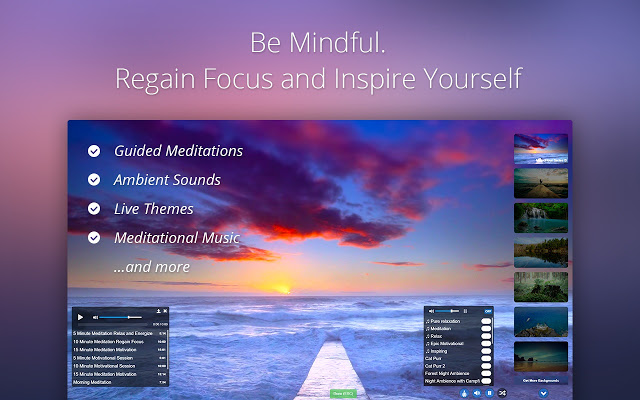
Also built for productivity, Live Start Page – Living Wallpaper stands tall among the best with its capability to be used “differently”.
Pastel Rainbow
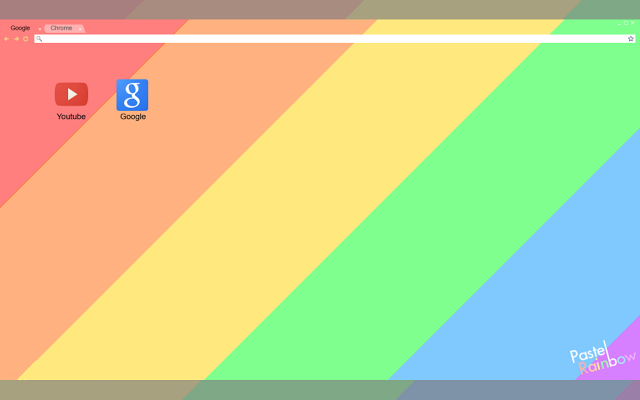
With borderless design, this theme makes your Chrome feels larger (even it wasn’t). Well, what can I say… it’s just too good looking not to try. 😀
Made_of
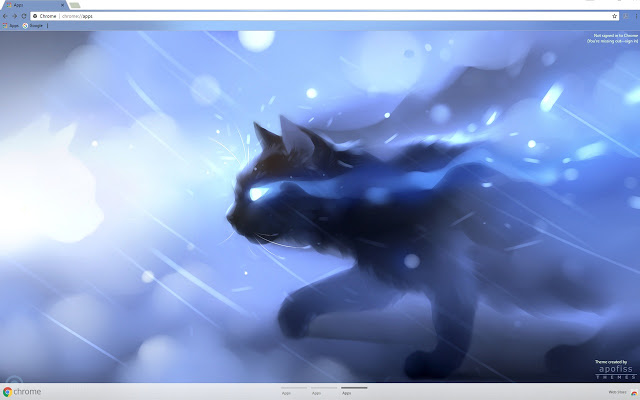
This theme was made by a Deviant Art contributor, Apofiss. Check out his other works too on Patreon.
Honorable Mentions For Best and Functional Chromebook Themes:
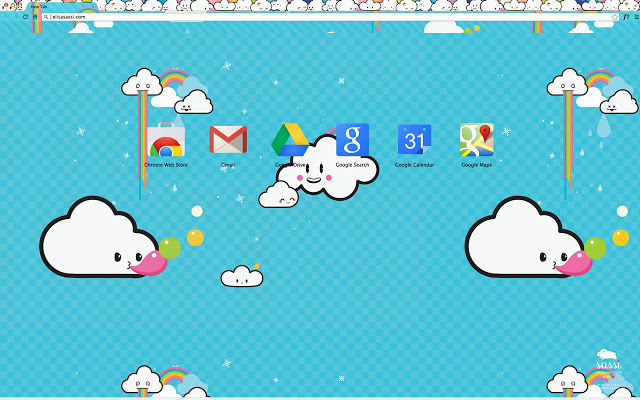
Nuvi Collection
- DevTools Theme: Zero Dark Matrix
The name explains itself, even it won’t transform you into Neo. It will give you the Matrix feel when you are using Chrome in the developer mode. -
Iron Man-Material Design
A theme with nice vector art of Ironman. - Nuvi Collection (displayed)
Also a simple theme with cute graphics. - Retro Robots Theme
Reminds me of the time I played Machinarium. - Fluffy Sushi
This theme is nicely presented.
Just if it actually works like in the preview, I would definitely use it as my main theme.
Because… cat.
Closing
So, that’s all best and functional Chromebook themes for early 2018. Are you using the theme I listed here? Or am I missing something? Please tell me in the comment section below and don’t forget to follow this web for more Chromebook info.


 bipolar is-popular_