Status

New Website in The Family! Games!


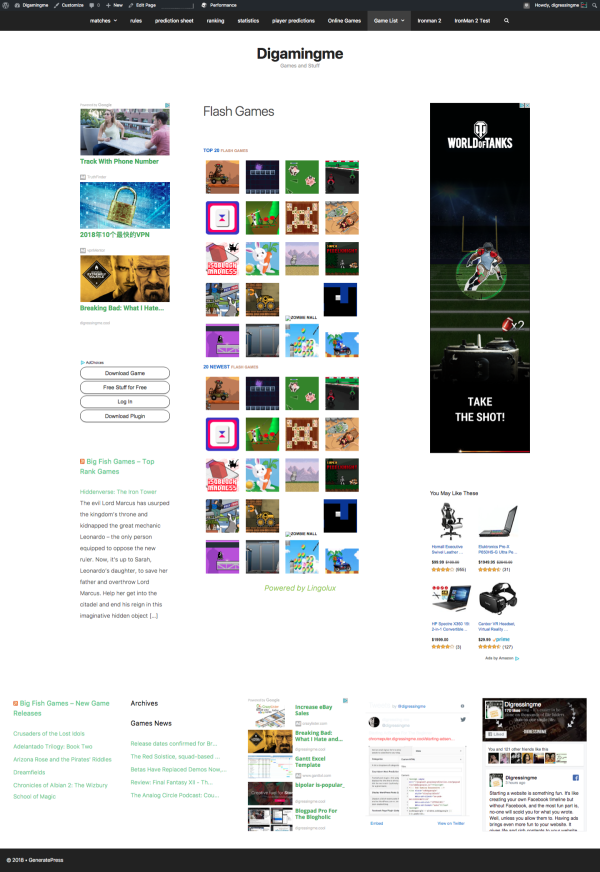
I am happy to inform you that a special site for games has been created. Named Digamingme, on https://games.digressingme.cool (or simply click the button in the top menu).
This time the site is still empty (but not that empty). However, we will be making continuous updates here.

Some games that have been included can be used to fill the spare time with a good cooperation with third parties. Most of the games need Flash Player, so make sure that you allow Flash Player to run on your web browser.

I also hope for those who want to cooperate to not hesitate to contact me.

Have fun, and please subscribe that page too.

This is Why I Love My Acer Chromebook C720


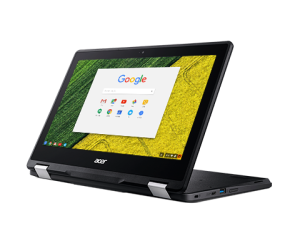
Acer Chromebook C720 and its sibling Acer Chromebook C720 P (the one I’m using) is a perfect Chromebook to do most of the task. Such as experimenting with Linux installation.Its durability and weight are just perfect to be taken in a traveling.,  I can put them in my backpack with no worries because there are no moving parts in Acer C720. The same luxury I can achieve using a MacBook Air, but not a MacBook or MacBook Pro.

Also, read Installing Linux on Chromebook.

My Acer C720 P has a touchscreen, unlike C720. But I rarely use it, since its lid is not a flip type. So, we can’t use it like a tablet. But that’s not something I have to put in the account. Because using Chrome OS with a touchscreen just feels weird and awkward. Not if you’re using it for running Android, but it’s currently not available for C720 and C720P anyway.

This laptop is very very hassle-free, you can use it out of the box. No installation, nothing. All I have to do is doing the one-time sign-in to my Google account, and all the setting I made on my Chrome web browser on my Mac will soon be available on my Chromebook. Including my Google Drive data of the same account.

//z-na.amazon-adsystem.com/widgets/onejs?MarketPlace=US&adInstanceId=ce8a8a97-7aaf-4489-b9d6-4ab1ac634241

Reversible

The not so pleasant thing in using clouds for my data is that once I made a mistake, then it’s a mistake. No matter if I try to open it using different devices. Because it will still open the same file.

But, every modification made on the  Chromebook itself is reversible We can restore its factory condition using the method I wrote here.

Upgradable

Acer Chromebook C720 comes with 2GB RAM and 64GB SSD by default, and that’s quite fast and more than enough to handle common web tasks. But we can still upgrade it to 4GB RAM and 120GB SSD easily by replacing its motherboard.

//ws-na.amazon-adsystem.com/widgets/q?ServiceVersion=20070822&OneJS=1&Operation=GetAdHtml&MarketPlace=US&source=ss&ref=as_ss_li_til&ad_type=product_link&tracking_id=digressingme-20&marketplace=amazon&region=US&placement=B01NCZVEZ4&asins=B01NCZVEZ4&linkId=5b3fd5b2ae306f812401a2897e7c9899&show_border=false&link_opens_in_new_window=true

Aside

Is Google Chrome an Operating System, Chrome OS Wiki


Is Google Chrome an Operating System, Chrome OS Wiki *: When we’re discussing the origin of Chrome OS, we will be discussing Chrome web browser and most of the time the discussion leads us to Chromium topic. Why is that? Because they all are inseparable yet different. But, we won’t be discussing histories now, since we already did that in our previous article.

We can find Chrome OS officially in Chromebook, Chromebase, Chromebox, and Chromebit.

Yea yea, so, what are they? Can you make it simple?

This will be the simplest way to explain them all:

  • Chromium is a Linux cornerstone project that gave birth to both Chromium OS and Chrome OS.
  • Chrome web browser is a web browser made by the people involved in Chrome after Chrome has been bought by Google and separated it from Chromium. Hence, there are Chromium OS and Chrome OS.
  • Chromium OS is an open source operating system developed by the people in Chromium which allow “Chrome OS” to be installed on most computer hardware.
  • Chrome OS is Chrome web browser revamped as an OS and distributed in Chrome’s hardware mentioned below…
  • Chromebook is a Linux laptop comes with Chrome OS pre-installed.
  • Chromebase is Linux all-in-one comes with Chrome OS pre-installed.
  • Chromebox is Linux desktop comes with Chrome OS pre-installed.
  • Chromebit is Linux portable all-in-one comes with Chrome OS pre-installed.

amzn_assoc_placement = “adunit0”;
amzn_assoc_search_bar = “true”;
amzn_assoc_tracking_id = “digressingme-20”;
amzn_assoc_search_bar_position = “bottom”;
amzn_assoc_ad_mode = “search”;
amzn_assoc_ad_type = “smart”;
amzn_assoc_marketplace = “amazon”;
amzn_assoc_region = “US”;
amzn_assoc_title = “Shop Related Products”;
amzn_assoc_default_search_phrase = “Chromebook”;
amzn_assoc_default_category = “All”;
amzn_assoc_linkid = “9a1dcd23c48b618745569817b4c23aa3”;

//z-na.amazon-adsystem.com/widgets/onejs?MarketPlace=US

So, Is Chromium a Neglected Project?

Well, not really. Its development is still growing. The only thing you won’t find in Chromium OS is the auto-update.

If you missed it, please also read Chromium for Mac 64bit.

The History in A Glance

Chrome OS is designed by Google, using Chromium web browser as the main interface. This allows (and limit) Chrome OS to use web application. Unlike other OS, Chrome OS resides the user application and data mostly on the cloud. This allows products coming with Chrome OS to be shipped with a very minimum storage capacity. Hence, the low price.

On its first days, Chrome can be used as a web browser on Windows, among Firefox and ie. It later became the fastest browser available. With the full support by Google, Chrome web browser then turned into an operating system comes embedded with many most used applications. Such as the application to handle email, documents and of course for TAB web browsing.

It was such a big deal in those days since TAB web browser was not available. All new web page will be opened on different windows. And so did email.

*Note: This is not an official Wikipedia. No shit, Sherlock!

So, answering my own question… Yes, Google Chrome is an operating system. But we’re calling it Chrome OS instead.


Here Is Why Crouton Is So Awesome on My Chromebook


Here Is Why Crouton Is So Awesome on My Chromebook

I used Crouton to install Linux on my Chromebook, and I’m using it again as I write this article. The installation is running on another tab of the Chrome web browser I’m using to write now. Here Is Why Crouton Is So Awesome on My Chromebook:

Also, read Earlier Crouton installation.

What Is Crouton?

Crouton is the acronym of Chromium OS Universal Chroot Environment. It is a set of scripts that bundle up into an easy-to-use, Chromium OS-centric chroot generator. Thre fore it allows us to install Linux within the Chrome and run it after. So, Chroot means CHromium ROOTs(?).

Installing Crouton

Installing Crouton itself is easy as long as you have all the sources. And like I mentioned earlier, it’s running on the same web browser I’m currently using. So, reading your reference as it’s installing will be very easy.

But, turning your Chromebook to developer mode is quite tricky and boring. So, please be patient with this process, ’cause I almost slam my Chromebook to the wall for my lack of knowledge and patience.

You can read the step by step tutorial here and then come back here to install other OS (I was using Gallium on that page).

Or, you can continue by following these steps (after making your Chromebook in developer mode):

  1. First, you will have to download Crouton.
  2. Then press ctrl + alt + T to open the new tab
  3. Type shell on the Terminal
  4. The prompt will be Chronoslocalhost
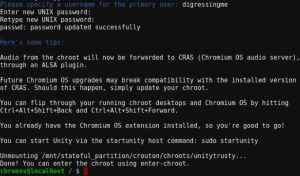
  5. Type  sudo sh ~/Downloads/crouton -t keyboard,extension,unity -r trusty -n unitytrusty
  6. Just wait until the installation finished and don’t close the tab!
  7. In the end, enter your username and set your password (twice). Pay attention to “twice”, it means you have to enter the same password two times.
  8. After it’s done, you can start using your Linux unity by typing sudo startunity on the terminal.

Why Crouton Is So Awesome on My Chromebook?

If what I’ve just explained to you is still not enough, what if I tell you that:

  • I can easily install other Linux using the same process only by writing different command line.
  • I don’t have to risk my data by accidentally formatting my drive.
  • I can cycle through Chromium OS and your running graphical chroots using Ctrl+Alt+Shift+Back and Ctrl+Alt+Shift+Forward.
  • Chrome OS and Linux installed by Crouton can share the same clipboard.

Great sources: https://gist.github.com/garthvh/07805317032ce7d55887

Chromebook Games I Didn’t Know Were This Good


Chromebook Games: When I was talking about games, Chromebook games were always the one I left out. Let me correct the last word, what I meant was “we left out”. Chromebook is not a platform focusing on games, it focuses more on user-friendly internet user. It regularly comes at the cheaper price, thank’s to the lightweight Chrome OS that makes running virtually everything smoothly. Besides, who hasn’t used Google Chrome since its released for Windows back in 2008? And THAT what makes Chrome OS user-friendly. Enough blah blah blah, let’s get to the list of Chromebook Games I Didn’t Know Were This Good.

First, I wanna tell you that I will divide this section in two. The first is the games running natively on Chromebook and the second is the one running on its website.

Chromebook Games That Run Natively on Chromebook

Happy Friday

This game has Super Mario and Sonic feel, but not really. It takes more skill even in the first level. We have to conquer the terrain using jump, double jump and even jump and hold to reach places. A must-have!

Pro: Quick installation.

Cons: Quite intimidating for a 1st-time player like me.

Get Happy Friday here.

Earth Keeper Mini

This game reminds me of Asteroids, the game I played on Atari back in my childhood. The mission is to protect earth from extraterrestrial attack.

Pro: Runs offline.

Cons: Hard to control, no instructions.

Get Earth KeeperMini here.

So Many Me

Chromebook Games


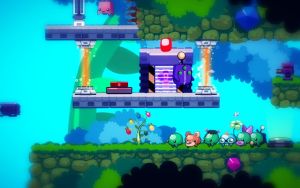
So Many Me” is a 2D puzzle platformer starring Filo and his band of misfit clones as they attempt to save a world threatened by an ancient, malevolent evil. Using their combined powers, Filo and his fellow Me must puzzle their way through a land of exotic creatures, devious traps, and evil minions.

Pro: Easy but not that easy with interesting story-line and cute original character. Reminds me of Blob.

Cons: The demo version only allows 80% of the screen. Which in my opinion is kinda lame, even for a demo.

Get So Many Me here.

Cut The Rope

[edsanimate_start entry_animation_type= “swing” entry_delay= “0” entry_duration= “2” entry_timing= “cubic-bezier(0.215, 0.61, 0.355, 1)” exit_animation_type= “” exit_delay= “” exit_duration= “” exit_timing= “” animation_repeat= “3” keep= “no” animate_on= “click” scroll_offset= “” custom_css_class= “”]

Chromebook Games[edsanimate_end]

Need I say more? Cut The Rope is a famous game for Android. Its mission is to logically feed the frog (or whatever that creature is).

Pro: Countless non-boring gameplay and playable offline.

Cons: Some level feels repetitive.

Get Cut The Rope here.

Mooch The Escape

This game is more to intimidating than challenging to me. It comes with a horrific atmosphere, just like the one brought by Limbo.

You control Blink, funny little creature that collects lost soul-fragments of his friend. But dangerous machines don’t like this idea and tries to stop Blink. Run from killing buzzsaws and watch for every step…

Pro: Runs offline.

Cons: Too hard (for me)!

Get Mooch The Escape here.

So, what do you think about the Chromebook games run natively on Chromebook? Is there any other game I should add here?

Let’s continue to Chromebook Web Games here.


What To Do After Pop OS Installation on Chromebook or Mac


This is My list of what to do after Pop OS installation:


First Setup

After a fast installation (versus other Linux distro installation) and restarting, you will be greeted by the Welcome screen. If nothing happens after the restart, make sure that you have unplugged the Live USB drive.  Hit Next.

On the Welcome screen, you’ll have to choose your keyboard layout. The most common is English (US). If you’re not sure, click the preview and compare the layout on the screen to your physical keyboard. Hit Next again.

Select your Wifi connection and insert the password. If you are not in any Wifi area, you can skip this. But, I recommend that you connect to the internet for the sake of completing the first installation.

Choose whether you want to turn the Location Services on or off. This will help Pop to determine which server you’re going to get everything Pop needs among other common location related.

Choose your Time Zone then hit Next.

This is the best part of Pop OS.It offers what elementary OS (my first favorite), which is Gnome Online Accounts. Connect your Online Accounts by selecting the services and then complete your activation. You can have multiple accounts at the same time.

The services are:

  • Google
  • Next cloud
  • Facebook
  • Microsoft
  • Flickr
  • Pocket
  • Foursquare
  • Microsoft Exchange
  • Media Server
  • Todoist
  • IMAP and SMTP
  • Enterprise Login (Kerberos)

Hit Next to bring you to your personal profile. Fill the form and choose whether you want to encrypt your home folder or not. Be careful, encrypting home folder means more security. No one can access your data, and that’s including you if you forget how to access your hard drive when shut happens. Hit Next to bring you to the last setup page and start using Pop!_OS. You will then have to log in with the password you set before.

What Next?

Click Files on the dock. The dock is where your icons sit waiting for you. The dock is by default auto-hide itself. So you might need to move your cursor to the far left of the screen.

In Files, you can see your Google Drive sit there just like your hard drive. Cool, huh!?! It really helps someone with storage space issue like me. Remember that it only works online. The good thing is, you don’t have to bring your laptop home from the office or vice versa because everything is stored in the Cloud.

Also read Cloudbacko, Mega and Deego, and Blaze, cloud storage solution.

Turn on Tap to Click

I do this because Acer C720P doesn’t feel really nice clicking.

Go to your setting by pressing super (search) button on your keyboard and type “tap” without the semicolon. It will call the Mouse & Touchpad setting.

You can also do other tasks from this search bar. For example, typing “vol” will call volume related items such as Hard drive and Sound. Typing “pic” will take you to Pictures, and so on… experiment with it. It’s fun.

You can change what will be included in the search later. In short, it’s like pressing cmd + space on a Mac.

Update Your Software

If you have the active internet connection, you can type “up” then select Software & Updates. Click “Download from” then choose “Other” for the server selection. Click “Select Best Server”. A series of tests will be executed to find the best server for you. most likely it will point to somewhere near your location. Click on “Choose Server” and then enter your password.

Close and then reload. It will then updating cache and begin downloading.

You can also try the harmless way by opening the terminal and then type: sudo apt-get update && sudo apt-get upgrade. This will tell Pop to… well, update and upgrade.

Set Keyboard Shortcuts

Chromebook has limited buttons, hence the keyboard shortcuts.

Press power then types “key” then chose the keyboard. You will then see the default keyboard shortcuts. Don’t memorize it, change them to your likes  (unless you’re sharing your laptop).

You can press ESC to cancel or go back to your previous screen/menu.

Install The Software You Need

Open Pop!_Shop and then install your software from there. Pop! can also do the most task using the command line, but I think, using a Terminal is not the reason why you use Pop! in the first place, right?

This Is My List of Top Priority Software:

  1. Google ChromeThis might sound contra-productive if you’re running Pop on your Chromebook, but having Chrome installed means reducing the need to re-install the same application you already installed and/or purchased on Chrome Web Store.And Since Google killed the apps and games section on another platform, the only way for you to get Chrome Apps is by installing on your Chromebook using Chrome OS and then it will be automatically available on all Chrome you’re using. All you have to do is open the Chrome and let it finish the installation.One more thing that makes this step is necessary is your Chrome apps will be working like a native application. So simple, right? It’s like unzipping a compilation of apps altogether.

    Read: How to Install Google Chrome on Linux.

  2. GIMPGIMP is a photo editor that supports image layering and blending just like Photoshop. Sadly, it’s not available in the Pop!_Shop. Pop is quite strict about what’s in and what’s not. But I personally think that GIMP should be in the Shop.You can install GIMP by Terminal with sudo apt-get install gimp

    Read about GIMP here.
  3. PitiviPitivi is a video editing software. It’s simple and zero learning hour needed. Not as powerful as other video editing software, but it has everything a casual user needs.

    You can install GIMP by Terminal with sudo apt-get install pitivi

    Read about Pitivi here.

  4. You can continue using the same step I did with elementary OS here.

No Tweaking

Pop is my second favorite after elementary OS. Both look just great out of the box. I always have difficulties when I have to choose one of them. So, I currently have both installed. >;p

Solus installation on Chromebook

Solus Installation on Chromebook Acer C720P


Solus Installation on Chromebook Acer C720P: Solus felt more into gaming than other Linux flavors, with Lutris and Steam included. But, of course, that all depends on the hardware. Then, my opinion about Linux is not for a gamer still stands, duh. The installation itself took more time than some other distros installation. My screen went sleep sometimes. The cool thing is my touchpad run very smoothly without updating the driver.

Solus comes with a so-so look, but it allows us to do a lot of customization without the need of using Gnome Tweak. Which in my experience tend to make the appearance even looked worse(and I don’t know where to repeat from). One more thing I found great on Solus is that its Software Center is easy to use. It has a nice frontend and most Softwares I need are already there.So I didn’t have to do the post-installation ritual like I have to do with other Linux distribution.

I had some trouble connecting to wifi, but maybe that just happens to me and not a common issue.

If you like Solus, you might also like elementary and Pop.

So, This is How I Did Solus Installation on Chromebook Acer C720P

Before you proceed, make sure you have developer mode enabled on your Chromebook. If you haven’t done so or not sure, check the step by step tutorial below:

Follow the chrx installation guide for the detailed process, here’s the summary:

  1. Make backups of Chromebooks using Chromebook Recovery Utility (just in case).
  2. Turn your Chromebook into Developer Mode (Do NOT turn on debugging mode!).
  3. Turn it off completely (not sleeping).
  4. Press and hold the Ctrl + (right arrow above/if on the regular keyboard = F2) and press the power button to turn it on.
  5. Click on ctrl + alt + t to open the terminal.
  6. Will appear with the crosh command prompt, type shell then hit enter.
  7. Type: sudo crossystem dev_boot_usb = 1 dev_boot_legacy = 1
  8. Follow the process until it restarts to Chrome again, then connect to the internet.

Move To Solus Installation on Chromebook Process

  1. Download the ISO here
  2. Burn the ISO to a USB drive <— I used 32GB, but 4GB will do just fine
  3. Shut your Chromebook down
  4. Plug the Live USB you made in step 2
  5. Turn on your Chromebook
  6. Press Ctrl + L on the exclamation mark screen <— this will bring you to the boot selection screen
  7. Select your Live USB from the screen
  8. Follow the next step in the video

So, that’s how my Solus installation on Chromebook process. I will cover more in near future.

Re-Introducing Acer Spin 11 Amazon


Acer Spin 11 might confuse you with the similar product launched last year, Flip C213. That’s acceptable since, well… they both are the same. The difference is that last year’s product was targeting educational market only. Comes with two processor option, quad-core, and Celeron.

The Chromebook Spin 11 has selections for quad-core Pentium or Celeron processors, two USB-C 3.1 ports, Google Play support, and an 11.6-inch touchscreen at a resolution of only 1366 x 768 — though at least the panel is IPS. Acer claims up to 10 hours of battery life.

And it also comes with a stylus pen.

You can bring this home for $389 at Amazon.

Acer Chromebook Spin 11 Convertible Laptop, Celeron N3350, 11.6″ HD Touch, 4GB DDR4, 32GB Storage, Wacom EMR Pen, Pearl White, CP511-1HN-C7Q1

What’s innovative is backer for inexpensive Wacom styluses and what Google is calling a “World View Camera,” which is to consider a camera that is meant to be used when the Chromebook is in tablet mode, and Google says students will be able to “turn it into a microscope.”

Let’s Watch Acer Spin 11 Review


This is last year video, but like stated above. They’re both basically the same.

Incursion 2: The Artifact A Game That Requires Too Much Effort


I guess today is my reunion day with my Chromebook, well… my Chrome OS actually. This is the first day that my Chromebook is run by Chrome OS again after months of experiments. I tried to look into the games section and quite surprised when I saw that there are more games than the last time I opened Chrome Web Store. And what caught my sight was Incursion 2: The Artifact.

Also check: Sneaky Snaeky Go, The Outbreak

Unfortunately, some games aren’t polished to perfection (yet?). I don’t know if it’s in Beta phase or something. Without trying to sound cynical, I can say that gaming on Chromebook is still worse than gaming on Linux or Mac. I just feel like it takes too much effort to play a single game. I would rather download the game and install it on my computer to play it rather than waiting for it to load.

Incursion 2: The Artifact is a strategy game that reminds me a lot of Tower Defense I played on my 2.5″ Android phone.

Please watch the video, I didn’t accelerate the speed so you can “enjoy” the waiting too. >;p

Here Is The Process I Went Trough to Play Incursion 2: The Artifact

What bothered me (besides how I lost my temper waiting to play) was the fact that it had to open another browser to display this game. I found it cluttering. But, since this game looks promising, I kept waiting after all.

If you want real gaming experience, try running Phoenix OS on your Chromebook.

For you who also want to try this game, you can get this game from Chrome Web Store.

These are the step to make the game more enjoyable:

  1. Copy the address from the new browser it opens.
  2. Paste it into Chrome <— this should leave the need to mess with Flash Player.
  3. The game should load.
  4. Press the key combination Ctrl + shift + + (that’s three buttons) to zoom-in the screen.

To be honest, I love this game so much I hated it. 😀

New to Chromebook? Check this out.

Status

Chrome OS Update 64.0.3282.101 Beta Channel


Chrome OS Update 64.0.3282.101 (Platform version: 10176.54.0) was just launched 19 hours ago. Although this update is still in Beta stage, still I was tempted to try it.

Like all products in the Beta stage, this version is not yet a final version called Stable. Because the Beta version aims to provide an opportunity for its users to try and report any damage or bugs.

Developers open the opportunity to report bugs and bugs through forum or by filing a bug.

For those interested in trying this Beta version, can do this by changing the channel by opening the settings and changing the options from Stable to Beta.

Of course, the downloading process will be required. so make sure the internet connection is connected before nagging because the update process is not running.

Meanwhile, As For DevTools 64…