Acer C720P/Chromebook Running Linux Alongside Chrome OS


F.A.Q: Acer C720P/Chromebook Running Linux Alongside Chrome OS

  • What is the exclamation mark on startup?

Exclamation mark on the startup screen is normal for a Chromebook running in Developer Mode. Just press Ctrl D to boot Chrome OS or Ctrl L to boot from other sources (eg. USB Live disk).

  • What is Developer Mode?

Developer mode is the mode activated by well… “developer” to allow customization other than it is in standard Chrome OS, it’s totally reversible.

  • I want to get rid of that exclamation mark! This also means resetting your Chromebook

Press Spacebar on the exclamation mark screen. Your Chromebook will be starting to restore itself back to factory mode. Your files will be wiped out and that means your Linux will also be deleted.

  • How to start Linux on my Chromebook?
  1. Login to Chrome OS and then press Ctrl Alt T to open Chronos
  2. Type shell then press enter
  3. Type sudo startunity then press enter
  4. Your Linux will start
  • How to end using Linux?

Don’t shut it down, put it to sleep or just press Ctrl Alt Shift and –> (right arrow) to go back to Chrome OS.

  • How to shut it down?

Always shut down your Chromebook within Chrome OS environment since your Linux is actually hosted by your Chrome OS. Cool, huh?
 

Read more about Crouton Linux (on Chromebook) here.

Read more about Chrome productivity extensions here.

Here Is Why Crouton Is So Awesome on My Chromebook


Here Is Why Crouton Is So Awesome on My Chromebook

I used Crouton to install Linux on my Chromebook, and I’m using it again as I write this article. The installation is running on another tab of the Chrome web browser I’m using to write now. Here Is Why Crouton Is So Awesome on My Chromebook:

Also, read Earlier Crouton installation.

What Is Crouton?

Crouton is the acronym of Chromium OS Universal Chroot Environment. It is a set of scripts that bundle up into an easy-to-use, Chromium OS-centric chroot generator. Thre fore it allows us to install Linux within the Chrome and run it after. So, Chroot means CHromium ROOTs(?).

Installing Crouton

Installing Crouton itself is easy as long as you have all the sources. And like I mentioned earlier, it’s running on the same web browser I’m currently using. So, reading your reference as it’s installing will be very easy.

But, turning your Chromebook to developer mode is quite tricky and boring. So, please be patient with this process, ’cause I almost slam my Chromebook to the wall for my lack of knowledge and patience.

You can read the step by step tutorial here and then come back here to install other OS (I was using Gallium on that page).

Or, you can continue by following these steps (after making your Chromebook in developer mode):

  1. First, you will have to download Crouton.
  2. Then press ctrl + alt + T to open the new tab
  3. Type shell on the Terminal
  4. The prompt will be Chronoslocalhost
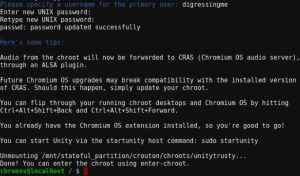
  5. Type  sudo sh ~/Downloads/crouton -t keyboard,extension,unity -r trusty -n unitytrusty
  6. Just wait until the installation finished and don’t close the tab!
  7. In the end, enter your username and set your password (twice). Pay attention to “twice”, it means you have to enter the same password two times.
  8. After it’s done, you can start using your Linux unity by typing sudo startunity on the terminal.

Why Crouton Is So Awesome on My Chromebook?

If what I’ve just explained to you is still not enough, what if I tell you that:

  • I can easily install other Linux using the same process only by writing different command line.
  • I don’t have to risk my data by accidentally formatting my drive.
  • I can cycle through Chromium OS and your running graphical chroots using Ctrl+Alt+Shift+Back and Ctrl+Alt+Shift+Forward.
  • Chrome OS and Linux installed by Crouton can share the same clipboard.

Great sources: https://gist.github.com/garthvh/07805317032ce7d55887