Deeper About Deepin OS 15.5 (What’s New in Feb 2018 Update)


There are some new things happening with Deepin OS 15.5. We can get new Deepin tool and new Deepin updates. And now, we’re also going to learn more about Deepin OS and what makes it the best looking Linux distro, even better than my favorite elementary and Pop OS! You know how cool those two are, right?

Also, read about two of my other favorite Linux: elementary and Pop.

Let’s Start With New Deepin Tool
Deepin OS 15.5

Installing Deepin and using it is very easy even for a no-brainer like me. Thank’s for its striking design and intuitive GUI which aims to provide an elegant, user-friendly and reliable operating system. And that even gets easier by the presence of new deepin repair tool, that we can use for, well… repairing deepin.

Let’s watch Deepin repair Tools in action:

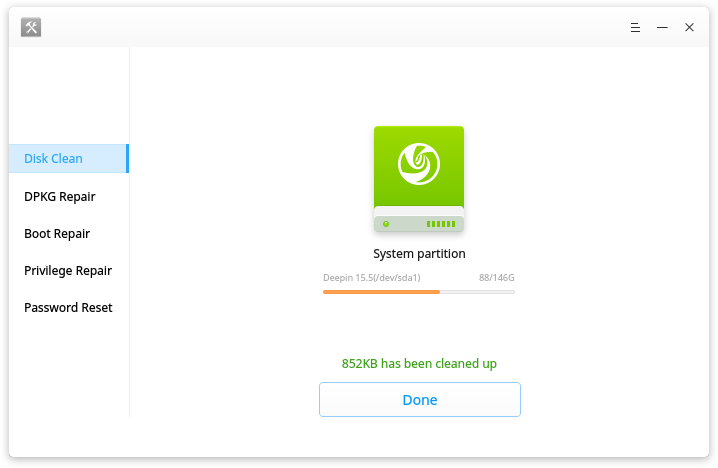
Deepin Repair is a tool to help users quickly fix some issues in deepin, including:

  • boot repairing
  • hard disk detecting
  • disk cleaning
  • DPKG repairing
  • privilege repairing
  • password reset.

Deepin Repair can run on both deepin Live system and the real environment.  When you can’t find boot menu, have privilege error or forgot login password, you can’t enter deepin desktop. That’s when you need to go into a Live system at first to run Deepin Repair. Sounds hassle-free, right?

Also, read about Deepin and Upin.

Deepin 15.5 Update

Background of What Deepin Is

The development of Deepin started in 2004 at a fast rate by Wuhan Deepin Technology Co., Ltd, a Chinese company. Debian is used as Deepin base while its previous versions (pre-Deepin OS15.5) based on Ubuntu.

Its desktop environment called DDE (Deepin Desktop Environment) which is based on the Qt 5 toolkit. Its home-grown applications, like Deepin Software Centre, DMusic and DPlayer and now Deepin Repair are tailored to the “average” user.

If you happen to feel familiar with the description above, perhaps because you’ve used it before when it’s called Linux Deepin, Hiweed GNU/Linux. Ring a bell?

Also, read about previous Deepin review.

What’s included in the last update:

  • DTK to version 2.0.6.1-1 fixed the issue that no “Help” entry to view manual;
  • Deepin Boot Maker to version 2.0.4.3-1, fixed the issue that it cannot start in live system;
  • Deepin Repair to version 1.0.1-1, fixed the issue that no icon shows for the directory.

Let’s watch the video below:

It is amazing to see popular Linux sites come out with lists of “best distros” and keep missing on Deepin and Manjaro. It feels like they don’t want the public to know about those. In the case of deepin, as I already read, THIS by far is the best Linux distribution I have ever tried, Extremely user-friendly, beautifully design and countless options when it comes to utilities. My only complaint with it is that the software versions on the app-market always run little behind to pretty much everybody. I had every possible thing I can think of when I installed it, everything native and available on my first run. “CROSSOVER” is a life saver. – deepin user.

Download the latest deepin OS by sharing the link below:

[sociallocker]

Get deepin OS here.

[/sociallocker]

Thank you for reading Deepin OS 15.5, I will keep the info about Deepin OS updated. Make sure you click the notification button on the lower right of your screen if you haven’t done so.

Aside

Ubuntu Studio For First Time User


I’ve been using Ubuntu Studio since I decided to run Ubuntu along-side my MacOSX and Chrome OS (yes, that’s possible). Kinda late actually since everyone else in the world has tested Ubuntu at least once in their life. So, I guess I’m not too late to try this. Or may I say that I’m actually just at the right time to test a Linux myself? The Linux my friends use looked crappy and ugly. Sounds harsh, but you know this is true.

Ubuntu STudio


No matter how good you are in programming or you can even boil an egg with a command line… when I say ugly here, I mean by the look only.


After the first install, I am starting to fall in love with Linux and started my path of searching a better (looking) Linux since then:

These are the list of Linux distros I’ve tried, it’s ordered from the one I favor the most first:

  1. Ubuntu 17.10
  2. Elementary OS
  3. Pop OS
  4. Solus
  5. Zorin
  6. Deepin
  7. Nitrux
  8. Freespire

I have also tried other flavors, you can find them using the search bar somewhere on this web. The first Linux I tried is Gallium before I walked my way installing Linux on my Chromebook using Crouton. No details will be covered here except for Ubuntu Studio, you can check the links on the list above to see more about the Linux version you want to know.

What Ubuntu Studio Offers

Ubuntu Studio is claimed to offer better multimedia production and experience. Started by changing its default theme including sounds. Optimized photo and video editing software, such as Gimp for photo editing and Pitivi for video editing. I haven’t tried any music editing software until now.

Ubuntu looks good too, just like it’s previous version (16) which is running alongside my Chrome OS right now. It’s not the best looking, but everything measured and placed just fine.

My Conclusion

So, if you are a first time Linux user like me, I’m suggesting to start with Ubuntu 17.10 or Elementary OS and Zorin OS for Mac user and Solus for Windows user. Again, for the sake of similar look only.


Status

Fall in Love With elementary OS (Again)


Fall in Love With elementary OS (Again): The Comparison to Other Linux

Is it a bit excessive if I say I fall in love with the elementary OS (Again)? But I think this is reasonable because I have tried some Linux distros and compared them according to the user’s point of view.

Also read: Zorin, Endless, Gallium, Ubuntu 17.10, Linux Mint and Mate.

To be honest, nothing is too special about this one operating system, if there is no strict rule of elementary OS for the application and design case.

If I may say, some of the other Linux versions I’ve used have numerous drawbacks.

Yes, indeed we are not talking about MacOSX which is designed to be ready to use or Windows with a myriad of applications and modifications allowed. But still…

For example, Zorin OS that looks pretty good, but defamed because of the logos that I think “out of the theme”.

The elementary OS logo goes deep into the theme. It’s all been thought of. Try it starting from the browser to the centre of the application. Everything is in theme one to another, is not it? Meanwhile, Ubuntu 17.10 comprises one of the deliberate Linux logos, I think.

Long story short, elementary OS is still the most recommended Linux out there for me.

Also read: previous elementary OS Loki review.

Yang Dilakukan Sesudah Install elementaryOS

Yang Dilakukan Sesudah Install elementaryOS, Gak Nyangka Kan?


Sejauh ini pakai elementaryOS rasanya menyenangkan. Jarang-jarang rasanya gw pakai laptop tanpa restart kaya sekarang ini, apalagi tanpa ngoprek-ngoprek. Intinya sih, elementaryOS sangat cocok buat gw yang sangat hedon sama dunia virtual ini. Cuma tetap ada yang musti ditambahin supaya makin greget, salah satunya yang paling gw rasain adalah install Chrome. Berikut ini adalah hal-hal yang dilakukan sesudah install elementaryOS:

Buka terminalnya dengan tombol kombinasi search + T kalau di Chromebook (mungkin search = capslock di laptop umumnya) atau cari aja di Applications > System Tools > Terminal

  1. Update system
    Buka Terminal lalu masukin ini ke dalamnya:

    sudo apt-get update && sudo apt-get upgrade
  2. Keyboard mapping
    Gw melakukan keyboard mapping secara gw install elementaryOS Loki ini di Chromebook yang keyboardnya ajaib(ditambah lagi gw adalah pemakai Macbook). Jadi gw mau perpindahan yang seamless dari satu OS ke OS yang lain. Ya daripada bego sejenak tiap kali buka lid laptop maksudnya. Caranya adalah dengan ke system settings > keyboards > shortcuts. Di sini gw rubah shortcut sesuai dengan kebiasaan gw di OS lain, misalnya untuk perpindahan workspace dan buka Terminal.
  3. Aktifin Tap to click di System Settings > Mouse & Touchpad
    enable tap to click in elementary OS Loki
  4. sudo apt install libreoffice
  5. Install aplikasi office
    Libre Office itu adalah Microsoft Office-nya Linux. Install dengan memasukkan perintah di bawah ini di terminal:
  6. Install VLC
    Siapa yang gak suka nonton film? Dan player ap yang lebih bagus dari VLC sampai saat ini? Daripada gw mulai nyerocos jadi salesman VLC gak jelas, mending langsung install aja dengan masukin ini di Terminal:

    sudo apt install vlc

  7. Install Gimp, Inkscape dan Shutter
    Kalau hobi kutak-katik gambar, wajiblah install tiga software ini. Di artikel sebelumnya gw pernah bikin bahasan singkat dan tutorial soal Gimp. Install ketiga software ini dengan memasukkan:

    sudo apt install gimp inkscape shutter

Ya kurang lebih begitu yang gw rubah biar pengalaman pakai elementaryOS jadi lebih menyenangkan. Kalau mau perubahan lebih detail, bisa lihat contekannya dari sumber yang gw cantumkan di bawah ini. Atau lebih tertarik install PhoenixOS biar bisa main Mobile Legend?

Gimana, gak nyangka kan kalau OS gratisan bisa sekeren ini? <~ jir, ini maksa banget biar ga dibilang clickbait. :p

Sumber : itsfoss.com.

cara install chrome di elementaryOS

Cara Install Chrome di elementaryOS


Belum juga setengah hari Aku pakai elementaryOS, Aku udah kangen lagi sama segala macam pernak-pernik yang ada di Chrome browser. Memang sih ada Epiphany dari sananya dan bisa diinstalin Chromium lewat AppCenter, tapi begitu Aku mau nulis soal Pixlr yang berjalan dengan Flash… kedua browser tadi gak bisa jadi solusi. Setidaknya gak secara default.

Dapatkan elementaryOS di sini.

Sebetulnya masalah ini juga jadi kendala ketika Aku percobaan pakai Ubuntu 17.10 dan saat itu Chrome bisa ditemuin di Software Centernya (atau apalah namanya). Di elementaryOS Aku nemuin jalan buntu sampai Aku nemuin jawaban yang ada di sini.

Begini Cara Install Chrome di elementaryOS

Caranya dengan buka Terminal dan masukin ini:

curl -O https://dl.google.com/linux/direct/google-chrome-stable_current_amd64.deb && sudo apt install ./google-chrome-stable_current_amd64.deb

Niscaya Chrome udah nangkring di folder aplikasi elementaryOS kita.

Setelah Chrome terinstall, kita tinggal sign-in dan membiarkan Chrome melakukan ritual awalnya buat loading segala macam ekstensi dan tetek bengek lainnya.

Mungkin gak ya cara install Chrome di elementaryOS ini juga jadi solusi buat install Linux yang lain? Kapan-kapan Aku coba deh, sekarang masih jatuh cinta sama Loki rasa MacOSX ini.