Deeper About Deepin OS 15.5 (What’s New in Feb 2018 Update)


There are some new things happening with Deepin OS 15.5. We can get new Deepin tool and new Deepin updates. And now, we’re also going to learn more about Deepin OS and what makes it the best looking Linux distro, even better than my favorite elementary and Pop OS! You know how cool those two are, right?

Also, read about two of my other favorite Linux: elementary and Pop.

Let’s Start With New Deepin Tool


Installing Deepin and using it is very easy even for a no-brainer like me. Thank’s for its striking design and intuitive GUI which aims to provide an elegant, user-friendly and reliable operating system. And that even gets easier by the presence of new deepin repair tool, that we can use for, well… repairing deepin.

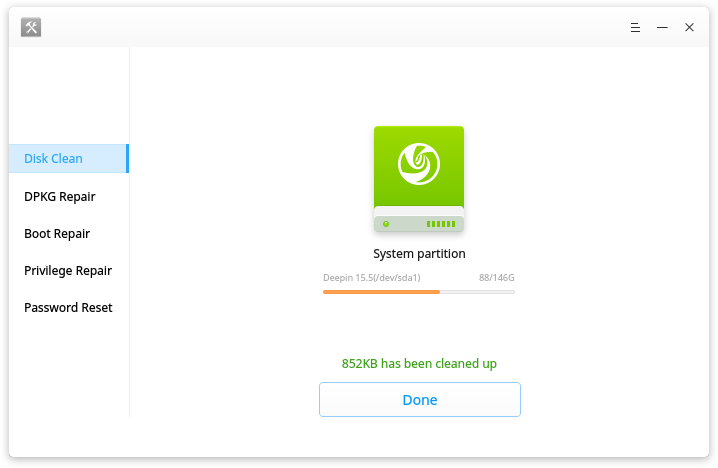
Let’s watch Deepin repair Tools in action:

Deepin Repair is a tool to help users quickly fix some issues in deepin, including:

  • boot repairing
  • hard disk detecting
  • disk cleaning
  • DPKG repairing
  • privilege repairing
  • password reset.

Deepin Repair can run on both deepin Live system and the real environment. When you can’t find boot menu, have privilege error or forgot login password, you can’t enter deepin desktop. That’s when you need to go into a Live system at first to run Deepin Repair. Sounds hassle-free, right?

Also, read about Deepin and Upin.

Deepin 15.5 Update

Background of What Deepin Is

The development of Deepin started in 2004 at a fast rate by Wuhan Deepin Technology Co., Ltd, a Chinese company. Debian is used as Deepin base while its previous versions (pre-Deepin OS15.5) based on Ubuntu.

Its desktop environment called DDE (Deepin Desktop Environment) which is based on the Qt 5 toolkit. Its home-grown applications, like Deepin Software Centre, DMusic and DPlayer and now Deepin Repair are tailored to the “average” user.

If you happen to feel familiar with the description above, perhaps because you’ve used it before when it’s called Linux Deepin, Hiweed GNU/Linux. Ring a bell?

Also, read about previous Deepin review.

What’s included in the last update:

  • DTK to version 2.0.6.1–1 fixed the issue that no “Help” entry to view manual;
  • Deepin Boot Maker to version 2.0.4.3–1, fixed the issue that it cannot start in live system;
  • Deepin Repair to version 1.0.1–1, fixed the issue that no icon shows for the directory.

Let’s watch the video below:

It is amazing to see popular Linux sites come out with lists of “best distros” and keep missing on Deepin and Manjaro. It feels like they don’t want the public to know about those. In the case of deepin, as I already read, THIS by far is the best Linux distribution I have ever tried, Extremely user-friendly, beautifully design and countless options when it comes to utilities. My only complaint with it is that the software versions on the app-market always run little behind to pretty much everybody. I had every possible thing I can think of when I installed it, everything native and available on my first run. “CROSSOVER” is a life saver. — deepin user.

Download the latest deepin OS by sharing the link below:

[sociallocker]

Get deepin OS here.

[/sociallocker]

Thank you for reading Deepin OS 15.5, I will keep the info about Deepin OS updated. Make sure you click the notification button on the lower right of your screen if you haven’t done so.

Deeper About Deepin OS 15.5 (What’s New in Feb 2018 Update)


There are some new things happening with Deepin OS 15.5. We can get new Deepin tool and new Deepin updates. And now, we’re also going to learn more about Deepin OS and what makes it the best looking Linux distro, even better than my favorite elementary and Pop OS! You know how cool those two are, right?

Also, read about two of my other favorite Linux: elementary and Pop.

Let’s Start With New Deepin Tool

Deepin OS 15.5

Installing Deepin and using it is very easy even for a no-brainer like me. Thank’s for its striking design and intuitive GUI which aims to provide an elegant, user-friendly and reliable operating system. And that even gets easier by the presence of new deepin repair tool, that we can use for, well… repairing deepin.

Let’s watch Deepin repair Tools in action:

Deepin Repair is a tool to help users quickly fix some issues in deepin, including:

  • boot repairing
  • hard disk detecting
  • disk cleaning
  • DPKG repairing
  • privilege repairing
  • password reset.

Deepin Repair can run on both deepin Live system and the real environment.  When you can’t find boot menu, have privilege error or forgot login password, you can’t enter deepin desktop. That’s when you need to go into a Live system at first to run Deepin Repair. Sounds hassle-free, right?

Also, read about Deepin and Upin.

Deepin 15.5 Update

Background of What Deepin Is

The development of Deepin started in 2004 at a fast rate by Wuhan Deepin Technology Co., Ltd, a Chinese company. Debian is used as Deepin base while its previous versions (pre-Deepin OS15.5) based on Ubuntu.

Its desktop environment called DDE (Deepin Desktop Environment) which is based on the Qt 5 toolkit. Its home-grown applications, like Deepin Software Centre, DMusic and DPlayer and now Deepin Repair are tailored to the “average” user.

If you happen to feel familiar with the description above, perhaps because you’ve used it before when it’s called Linux Deepin, Hiweed GNU/Linux. Ring a bell?

Also, read about previous Deepin review.

What’s included in the last update:

  • DTK to version 2.0.6.1-1 fixed the issue that no “Help” entry to view manual;
  • Deepin Boot Maker to version 2.0.4.3-1, fixed the issue that it cannot start in live system;
  • Deepin Repair to version 1.0.1-1, fixed the issue that no icon shows for the directory.

Let’s watch the video below:

It is amazing to see popular Linux sites come out with lists of “best distros” and keep missing on Deepin and Manjaro. It feels like they don’t want the public to know about those. In the case of deepin, as I already read, THIS by far is the best Linux distribution I have ever tried, Extremely user-friendly, beautifully design and countless options when it comes to utilities. My only complaint with it is that the software versions on the app-market always run little behind to pretty much everybody. I had every possible thing I can think of when I installed it, everything native and available on my first run. “CROSSOVER” is a life saver. – deepin user.

Download the latest deepin OS by sharing the link below:

[sociallocker]

Get deepin OS here.

[/sociallocker]

Thank you for reading Deepin OS 15.5, I will keep the info about Deepin OS updated. Make sure you click the notification button on the lower right of your screen if you haven’t done so.
Here Is Why Crouton Is So Awesome on My Chromebook


Here Is Why Crouton Is So Awesome on My Chromebook

I used Crouton to install Linux on my Chromebook, and I’m using it again as I write this article. The installation is running on another tab of the Chrome web browser I’m using to write now. Here Is Why Crouton Is So Awesome on My Chromebook:

Also, read Earlier Crouton installation.

What Is Crouton?

Crouton is the acronym of Chromium OS Universal Chroot Environment. It is a set of scripts that bundle up into an easy-to-use, Chromium OS-centric chroot generator. Thre fore it allows us to install Linux within the Chrome and run it after. So, Chroot means CHromium ROOTs(?).

Installing Crouton

Installing Crouton itself is easy as long as you have all the sources. And like I mentioned earlier, it’s running on the same web browser I’m currently using. So, reading your reference as it’s installing will be very easy.

But, turning your Chromebook to developer mode is quite tricky and boring. So, please be patient with this process, ’cause I almost slam my Chromebook to the wall for my lack of knowledge and patience.

You can read the step by step tutorial here and then come back here to install other OS (I was using Gallium on that page).

Or, you can continue by following these steps (after making your Chromebook in developer mode):

  1. First, you will have to download Crouton.
  2. Then press ctrl + alt + T to open the new tab
  3. Type shell on the Terminal
  4. The prompt will be Chronoslocalhost
  5. Type  sudo sh ~/Downloads/crouton -t keyboard,extension,unity -r trusty -n unitytrusty
  6. Just wait until the installation finished and don’t close the tab!
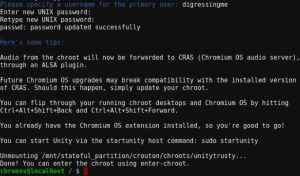
  7. In the end, enter your username and set your password (twice). Pay attention to “twice”, it means you have to enter the same password two times.
  8. After it’s done, you can start using your Linux unity by typing sudo startunity on the terminal.

Why Crouton Is So Awesome on My Chromebook?

If what I’ve just explained to you is still not enough, what if I tell you that:

  • I can easily install other Linux using the same process only by writing different command line.
  • I don’t have to risk my data by accidentally formatting my drive.
  • I can cycle through Chromium OS and your running graphical chroots using Ctrl+Alt+Shift+Back and Ctrl+Alt+Shift+Forward.
  • Chrome OS and Linux installed by Crouton can share the same clipboard.

Great sources: https://gist.github.com/garthvh/07805317032ce7d55887

Solus installation on Chromebook

Solus Installation on Chromebook Acer C720P


Solus Installation on Chromebook Acer C720P: Solus felt more into gaming than other Linux flavors, with Lutris and Steam included. But, of course, that all depends on the hardware. Then, my opinion about Linux is not for a gamer still stands, duh. The installation itself took more time than some other distros installation. My screen went sleep sometimes. The cool thing is my touchpad run very smoothly without updating the driver.

Solus comes with a so-so look, but it allows us to do a lot of customization without the need of using Gnome Tweak. Which in my experience tend to make the appearance even looked worse(and I don’t know where to repeat from). One more thing I found great on Solus is that its Software Center is easy to use. It has a nice frontend and most Softwares I need are already there.So I didn’t have to do the post-installation ritual like I have to do with other Linux distribution.

I had some trouble connecting to wifi, but maybe that just happens to me and not a common issue.

If you like Solus, you might also like elementary and Pop.

So, This is How I Did Solus Installation on Chromebook Acer C720P

Before you proceed, make sure you have developer mode enabled on your Chromebook. If you haven’t done so or not sure, check the step by step tutorial below:

Follow the chrx installation guide for the detailed process, here’s the summary:

  1. Make backups of Chromebooks using Chromebook Recovery Utility (just in case).
  2. Turn your Chromebook into Developer Mode (Do NOT turn on debugging mode!).
  3. Turn it off completely (not sleeping).
  4. Press and hold the Ctrl + (right arrow above/if on the regular keyboard = F2) and press the power button to turn it on.
  5. Click on ctrl + alt + t to open the terminal.
  6. Will appear with the crosh command prompt, type shell then hit enter.
  7. Type: sudo crossystem dev_boot_usb = 1 dev_boot_legacy = 1
  8. Follow the process until it restarts to Chrome again, then connect to the internet.

Move To Solus Installation on Chromebook Process

  1. Download the ISO here
  2. Burn the ISO to a USB drive <— I used 32GB, but 4GB will do just fine
  3. Shut your Chromebook down
  4. Plug the Live USB you made in step 2
  5. Turn on your Chromebook
  6. Press Ctrl + L on the exclamation mark screen <— this will bring you to the boot selection screen
  7. Select your Live USB from the screen
  8. Follow the next step in the video

So, that’s how my Solus installation on Chromebook process. I will cover more in near future.