
Something I don’t understand is, “why an enterprise as big as Facebook doesn’t make a good tutorial for using most of its feature?” Are they selling their help to their customer or what? I was going back and fro just to monetize my Facebook Instant Article. And even though it’s running now, I still have some questions I dare not to ask to keep me away from the maze. In this article, I will try to summarize my efforts to monetize Facebook and share it with you as simply as possible so we can start to work from home using Facebook right now!
Some Blah Blah Blah
If you still use Facebook only to complain or to upload cruelty to then give a curse to the culprit and pray for his victims, now you can use your time for useful things. Believe not if the cruelty you share on Facebook is making money for the person who shared it first?
Making money on Facebook is not a mistake, in fact, I can say that it is something useful. it’s just that people who have low creativity can only share such things. Or they are too smart to use the stupidity of others who will surely share it. Now I want to share how to become one of them, not by sharing garbage, but by doing it the right way. Let’s start discussing how to work from home by monetizing Facebook.
Two First Things
If you have read and done the first and second part of making money using Facebook, then I presume you already have some contents on your Facebook page. If you haven’t, check the link below:
Making WordPress Feed
This is essential since Facebook Instant Article will be fed from here.
Method 1: Self-hosted WordPress
You’re free to use any kind of blog or whatever as long as you can embed the Instant Articles code into the <head> section of your page. We will discuss this later. For now, install and activate the following free plugins:
- Native Articles (Facebook Instant Articles)
- Monster Insights
- Insert Headers and Footers
Method 2: WordPress.com
Using WordPress.com is also convenient but with the lack of shiny objects.
These are the quick steps:
- Make a free account at WordPress.com
- Install JetPack
- Go to Setting > Sharing
- Connect your Facebook Page to WordPress
- Open my WordPress and follow me 🙂 <~this part is essential, it won’t work without this. 😀
Don’t have WordPress yet? Get it here.
To be honest, if you’re comfortable with WordPress, you can start earning money without getting your hands dirty with this confusing tutorial. Just search this website for more WordPress tutorials, or start looking here.
Also, check this list of WordPress plugins to help you making money.
But, if you like the challenge and even want some extra cash, let’s go to your Facebook Page.
Setting Up Instant Articles to WordPress
- Click on Publishing Tools at the top of your Facebook Page
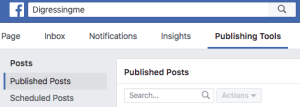
- Look for Instant Articles section on the left and then click on Configuration
- Go to Tools > Connect Your Site
- Copy the code (what we discussed earlier), it should looks like this: <meta property=“fb:pages” content=“xxxxxxxxxxxxxxx” />
- Don’t close your Facebook
- Open your WordPress, hover your cursor over Settings and choose Insert Headers and Footers
- Paste the code you copied to the Head area, and then click Save
- Back to Facebook copy the number written at WordPress plugin users use xxxxxxxxxxxxxxxxxxx as the Page ID
- Go to WordPress again, look for Native Articles and choose Facebook Instant Articles
- Paste the number (xxx) to the General > Authorization ID
- Back to Facebook again, fill in the URL area with your WordPress website address
- Click Claim URL, if you did everything right, your website will be added to Instant Articles claimed URL
Making A Facebook App
- Got to https://developers.facebook.com/apps/
- Click the green Add A New App (I said green)
- Fill the box with your credentials and make verification when asked (the Captcha thing)
- You will then be directed to your new App Dashboard (Finally a non-blue Facebook)
- Look for Audience Networks and click Setup
- Create a new business manager account (sounds cool, right?)
- Enter your business name, Continue
- Choose your name (first and last name) and your business email
I already have a business manager, and I forgot if there’s anymore step between creating a business manager and this following part…
- Choose “use existing property”
-
Note: Website monetization is only available for approved businesses.
-
Click Go To Monetization Manager
- Choose website
- Wait until Facebook contacted you
Production RSS Feed
WordPress will feed Instant Articles, so we have to go to the Production RSS Feed area under the Claim URL button. Fill it with something like https://your-WordPress.com-orsomething/feed/facebook-instant-articles/
You should change your-WordPress.com-orsomething with your website address. Facebook will periodically check your feed and then convert it to Instant Articles.
Monster Insights
We will be using Monster Insights to connect Google Analytics to our WordPress website and Instant Articles.
That’s It!
Start writing on your WordPress website, free or self-hosted and make sure you arrange the payment on Facebook. I’m afraid I can’t help you this time unless you trust me with your credit card number hahaha!


 bipolar is-popular_
