Deeper About Deepin OS 15.5 (What’s New in Feb 2018 Update)


There are some new things happening with Deepin OS 15.5. We can get new Deepin tool and new Deepin updates. And now, we’re also going to learn more about Deepin OS and what makes it the best looking Linux distro, even better than my favorite elementary and Pop OS! You know how cool those two are, right?

Also, read about two of my other favorite Linux: elementary and Pop.

Let’s Start With New Deepin Tool
Deepin OS 15.5

Installing Deepin and using it is very easy even for a no-brainer like me. Thank’s for its striking design and intuitive GUI which aims to provide an elegant, user-friendly and reliable operating system. And that even gets easier by the presence of new deepin repair tool, that we can use for, well… repairing deepin.

Let’s watch Deepin repair Tools in action:

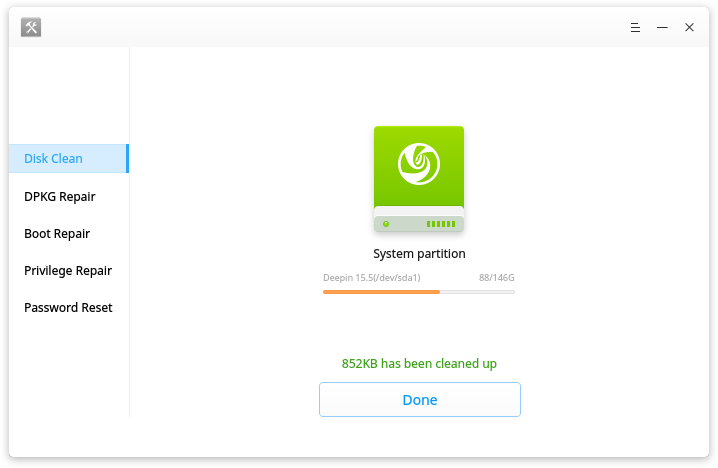
Deepin Repair is a tool to help users quickly fix some issues in deepin, including:

  • boot repairing
  • hard disk detecting
  • disk cleaning
  • DPKG repairing
  • privilege repairing
  • password reset.

Deepin Repair can run on both deepin Live system and the real environment.  When you can’t find boot menu, have privilege error or forgot login password, you can’t enter deepin desktop. That’s when you need to go into a Live system at first to run Deepin Repair. Sounds hassle-free, right?

Also, read about Deepin and Upin.

Deepin 15.5 Update

Background of What Deepin Is

The development of Deepin started in 2004 at a fast rate by Wuhan Deepin Technology Co., Ltd, a Chinese company. Debian is used as Deepin base while its previous versions (pre-Deepin OS15.5) based on Ubuntu.

Its desktop environment called DDE (Deepin Desktop Environment) which is based on the Qt 5 toolkit. Its home-grown applications, like Deepin Software Centre, DMusic and DPlayer and now Deepin Repair are tailored to the “average” user.

If you happen to feel familiar with the description above, perhaps because you’ve used it before when it’s called Linux Deepin, Hiweed GNU/Linux. Ring a bell?

Also, read about previous Deepin review.

What’s included in the last update:

  • DTK to version 2.0.6.1-1 fixed the issue that no “Help” entry to view manual;
  • Deepin Boot Maker to version 2.0.4.3-1, fixed the issue that it cannot start in live system;
  • Deepin Repair to version 1.0.1-1, fixed the issue that no icon shows for the directory.

Let’s watch the video below:

It is amazing to see popular Linux sites come out with lists of “best distros” and keep missing on Deepin and Manjaro. It feels like they don’t want the public to know about those. In the case of deepin, as I already read, THIS by far is the best Linux distribution I have ever tried, Extremely user-friendly, beautifully design and countless options when it comes to utilities. My only complaint with it is that the software versions on the app-market always run little behind to pretty much everybody. I had every possible thing I can think of when I installed it, everything native and available on my first run. “CROSSOVER” is a life saver. – deepin user.

Download the latest deepin OS by sharing the link below:

[sociallocker]

Get deepin OS here.

[/sociallocker]

Thank you for reading Deepin OS 15.5, I will keep the info about Deepin OS updated. Make sure you click the notification button on the lower right of your screen if you haven’t done so.

Linux Deepin Reviews and Why It Is Better Than Elementary and Pop OS Pt.2


So, in previous Linux Deepin reviews article, I talked about the first experience I had installing it. Now we’ll continue into what makes it better than elementary and Pop. Don’t get me wrong, both are my first two favorite Linux distros. But there will always be on standing taller than the others, right?

Linux Deepin Reviews: Shop

In Elementary, we’re equipped with a software center where the unwritten rule is: If it’s not there, then it won’t work. So, I’ll have to sit and wait what the developers feed me later.

In Pop, we can do some “tweaking” using the command line, but the option is limited. It’s like “do at your own risk” thing.

Also, read about Pop OS here.

In Deepin Store… (inhale) we can find many apps provided by Deepin or y other developers. I haven’t tested them all, but most of them work just fine. The store design is so slick and intuitive. The apps come with screenshots. The icons fit the theme well. No wonder, Deepin has the best icons collection used by many other Linux distro’s users.

And… it has Crossover installed that allows me to run most Windows apps games.

System Setting and Launcher

Needless to say, Deepin has the best system setting called Control Panel. Without trying to copy Mac’s or Window’s looks, it’s presented to us in a way with Android feels. Somehow it reminds me of Phoenix OS.

So does the launcher, there are some options that we can choose to use the launcher according to our likes (Ubuntu, Mac or Windows).

Enough said, let’s watch the video to see how it looks:

So, what do you think after watching Linux Deepin review video? Is it debatable that it’s better than Elementary and Pop?

Or you want to know even more about deepin? Click here.

What To Do After Pop OS Installation on Chromebook or Mac


This is My list of what to do after Pop OS installation:


First Setup

After a fast installation (versus other Linux distro installation) and restarting, you will be greeted by the Welcome screen. If nothing happens after the restart, make sure that you have unplugged the Live USB drive.  Hit Next.

On the Welcome screen, you’ll have to choose your keyboard layout. The most common is English (US). If you’re not sure, click the preview and compare the layout on the screen to your physical keyboard. Hit Next again.

Select your Wifi connection and insert the password. If you are not in any Wifi area, you can skip this. But, I recommend that you connect to the internet for the sake of completing the first installation.

Choose whether you want to turn the Location Services on or off. This will help Pop to determine which server you’re going to get everything Pop needs among other common location related.

Choose your Time Zone then hit Next.

This is the best part of Pop OS.It offers what elementary OS (my first favorite), which is Gnome Online Accounts. Connect your Online Accounts by selecting the services and then complete your activation. You can have multiple accounts at the same time.

The services are:

  • Google
  • Next cloud
  • Facebook
  • Microsoft
  • Flickr
  • Pocket
  • Foursquare
  • Microsoft Exchange
  • Media Server
  • Todoist
  • IMAP and SMTP
  • Enterprise Login (Kerberos)

Hit Next to bring you to your personal profile. Fill the form and choose whether you want to encrypt your home folder or not. Be careful, encrypting home folder means more security. No one can access your data, and that’s including you if you forget how to access your hard drive when shut happens. Hit Next to bring you to the last setup page and start using Pop!_OS. You will then have to log in with the password you set before.

What Next?

Click Files on the dock. The dock is where your icons sit waiting for you. The dock is by default auto-hide itself. So you might need to move your cursor to the far left of the screen.

In Files, you can see your Google Drive sit there just like your hard drive. Cool, huh!?! It really helps someone with storage space issue like me. Remember that it only works online. The good thing is, you don’t have to bring your laptop home from the office or vice versa because everything is stored in the Cloud.

Also read Cloudbacko, Mega and Deego, and Blaze, cloud storage solution.

Turn on Tap to Click

I do this because Acer C720P doesn’t feel really nice clicking.

Go to your setting by pressing super (search) button on your keyboard and type “tap” without the semicolon. It will call the Mouse & Touchpad setting.

You can also do other tasks from this search bar. For example, typing “vol” will call volume related items such as Hard drive and Sound. Typing “pic” will take you to Pictures, and so on… experiment with it. It’s fun.

You can change what will be included in the search later. In short, it’s like pressing cmd + space on a Mac.

Update Your Software

If you have the active internet connection, you can type “up” then select Software & Updates. Click “Download from” then choose “Other” for the server selection. Click “Select Best Server”. A series of tests will be executed to find the best server for you. most likely it will point to somewhere near your location. Click on “Choose Server” and then enter your password.

Close and then reload. It will then updating cache and begin downloading.

You can also try the harmless way by opening the terminal and then type: sudo apt-get update && sudo apt-get upgrade. This will tell Pop to… well, update and upgrade.

Set Keyboard Shortcuts

Chromebook has limited buttons, hence the keyboard shortcuts.

Press power then types “key” then chose the keyboard. You will then see the default keyboard shortcuts. Don’t memorize it, change them to your likes  (unless you’re sharing your laptop).

You can press ESC to cancel or go back to your previous screen/menu.

Install The Software You Need

Open Pop!_Shop and then install your software from there. Pop! can also do the most task using the command line, but I think, using a Terminal is not the reason why you use Pop! in the first place, right?

This Is My List of Top Priority Software:

  1. Google ChromeThis might sound contra-productive if you’re running Pop on your Chromebook, but having Chrome installed means reducing the need to re-install the same application you already installed and/or purchased on Chrome Web Store.And Since Google killed the apps and games section on another platform, the only way for you to get Chrome Apps is by installing on your Chromebook using Chrome OS and then it will be automatically available on all Chrome you’re using. All you have to do is open the Chrome and let it finish the installation.One more thing that makes this step is necessary is your Chrome apps will be working like a native application. So simple, right? It’s like unzipping a compilation of apps altogether.

    Read: How to Install Google Chrome on Linux.

  2. GIMPGIMP is a photo editor that supports image layering and blending just like Photoshop. Sadly, it’s not available in the Pop!_Shop. Pop is quite strict about what’s in and what’s not. But I personally think that GIMP should be in the Shop.You can install GIMP by Terminal with sudo apt-get install gimp

    Read about GIMP here.
  3. PitiviPitivi is a video editing software. It’s simple and zero learning hour needed. Not as powerful as other video editing software, but it has everything a casual user needs.

    You can install GIMP by Terminal with sudo apt-get install pitivi

    Read about Pitivi here.

  4. You can continue using the same step I did with elementary OS here.

No Tweaking

Pop is my second favorite after elementary OS. Both look just great out of the box. I always have difficulties when I have to choose one of them. So, I currently have both installed. >;p

Aside

Ubuntu Studio For First Time User


I’ve been using Ubuntu Studio since I decided to run Ubuntu along-side my MacOSX and Chrome OS (yes, that’s possible). Kinda late actually since everyone else in the world has tested Ubuntu at least once in their life. So, I guess I’m not too late to try this. Or may I say that I’m actually just at the right time to test a Linux myself? The Linux my friends use looked crappy and ugly. Sounds harsh, but you know this is true.

Ubuntu STudio


No matter how good you are in programming or you can even boil an egg with a command line… when I say ugly here, I mean by the look only.


After the first install, I am starting to fall in love with Linux and started my path of searching a better (looking) Linux since then:

These are the list of Linux distros I’ve tried, it’s ordered from the one I favor the most first:

  1. Ubuntu 17.10
  2. Elementary OS
  3. Pop OS
  4. Solus
  5. Zorin
  6. Deepin
  7. Nitrux
  8. Freespire

I have also tried other flavors, you can find them using the search bar somewhere on this web. The first Linux I tried is Gallium before I walked my way installing Linux on my Chromebook using Crouton. No details will be covered here except for Ubuntu Studio, you can check the links on the list above to see more about the Linux version you want to know.

What Ubuntu Studio Offers

Ubuntu Studio is claimed to offer better multimedia production and experience. Started by changing its default theme including sounds. Optimized photo and video editing software, such as Gimp for photo editing and Pitivi for video editing. I haven’t tried any music editing software until now.

Ubuntu looks good too, just like it’s previous version (16) which is running alongside my Chrome OS right now. It’s not the best looking, but everything measured and placed just fine.

My Conclusion

So, if you are a first time Linux user like me, I’m suggesting to start with Ubuntu 17.10 or Elementary OS and Zorin OS for Mac user and Solus for Windows user. Again, for the sake of similar look only.


Pop OS

Pop OS is The Second Best Looking Linux Distro For Me


Pop Os also based on Ubuntu choose the minimalistic way to engage its user. Claimed to aim “the real workers” who use their Linux laptop/desktop for more serious activity. I have to admit that this is one of a few Linux distro that catches my attention after (still) elementaryOS. As its web says…

We believe the computer and operating system are the most powerful and versatile tools ever created. Desktop operating systems have moved too far toward the casual user. We’re building an OS for the software developer, maker, and computer science professional who uses their computer as a tool to discover and create.

When I first checked their website, I already find that the developer is unique among others. Just go to their official website to see what I mean.

But Pop OS Approach Is Way Too Minimalist

Perhaps it’s just my choice of installer package (but I don’t remember saw any other options), I got so few applications came with the package. Sadly it also excludes Pitivi, my favorite video editor for Linux and no Chrome! And no alternative video editor as well.

So that means I have to install Chrome manually (again) and then do my common Linux installation ritual too.

But design-wise, I see no flaws at all. The icons are perfectly shaped, the margins and distance between the icons are just right. The colors are near the same theme one to another.

Don’t worry if my links come up with an unfamiliar language, just click translate. That’s what that button does, and it should work good because it’s powered by GTranslate.