
Telegram X is an alternative Telegram client built in Swift, with higher speed, slicker animations, themes and more efficient battery use.
The goal of Telegram X is to reinvent Telegram and explore new frontiers in speed, ease of use, quality of animations and all other aspects. Today we are glad to present two new official apps – Telegram X for Android and iOS.
Both these apps are experimental and may or may not eventually replace the existing official apps. But even if they don’t, they will speed up the development of Telegram by allowing us to quickly test new approaches and technologies. ~ as written on its blog.

On The First Try
After Telegram X for iOS is installed from the AppStore (also available for Android), it will show “Telegram X” would like to access your contacts. Telegram will continuously upload your contacts to its heavily encrypted cloud servers to let you connect with your friends across all your devices.” Sounds like all other chat apps, so I choose OK.
Then I clicked “Start Messaging” and make phone number verification after that. Well, actually I’m not quite comfortable with this kind of process (I have to use my verified ID and then share it with all of my contacts). I prefer the way old-school messaging had, like Yahoo Messenger that requires me to add only people I want to be connected with. But, let’s move on.
As I expected, all of my contacts are already there. I keep my finger crossed hoping that Telegram X won’t make an “announcement” telling everyone in my phonebook that I’m using Telegram right now.
There are four tabs:
- Contacts, the one I mentioned earlier.
- Calls, just like in WhatsApp
- Chats, also like WhatsApp
- Settings, this is where the fun begins.
We can set our username!
You can choose a username on **Telegram**. If you do, other people will be able to find you by using this username and contact you without knowing your phone number.
 And THAT’s convenient! I don’t want everybody to know my number, but I need a convenient way to tell people how to reach me. The last step just did that for me.
There are also menus for Saved Messages, Recent Calls, and Stickers. I’m not a fancy user who will use this a lot, 💏 but still, I found that this feature is nice.
Telegram X also allows us blocked some annoying friends just like WhatsApp do. It has 3 security settings: Passcode, Two-step verification and by monitoring your active session. Your account will be automatically deleted from Telegram server if you’re not using it for the period of your choice. That means if you’re somehow ended up in jail, you don’t have to worry your wife will receive a Telegram text from your girlfriend.
Remember when you open your photo gallery and finding some photos you didn’t take/downloaded? Most of them came from WhatsApp group. With Telegram X you can set your storage usage, either you want to keep your media forever or for as short as one week.
You can also prevent photo/audio/video and even GIFS from being downloaded automatically by using the setting in “Data and Storage”. Extra cool!
Yes, we can also turn auto download on/off too on WhatsApp, but that’s like burning a house to kill a mouse.
Say Goodbye to notification and Instagram chat…Type!.

…and also, you can choose which one Telegram X should prevent from auto-downloading between Private Chats or groups or even both. Super cool! This feature will also be helpful when you’re in the middle of quota crisis.
Native languages are also available in 14 languages to choose from.
What surprises me is Telegram X has a built-in customer support.
Telegram X Customization
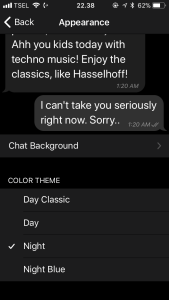
The most ultimate WhatsApp killer is the option to customize the appearance of your Telegram X. Leaving the fancy factor aside, having larger text helps Telegram X user to read their messages better. You also have 30 background wallpaper to choose and four different themes.
Themes:
- Day Classic
- Day
- Night
- Night Blue
So, what do you think about Telegram X, is it really a WhatsApp killer?

 bipolar is-popular_